


Page 168 - MuseScore 2.0 handbook
P. 168
Nonexistant node nid: 39841
         Note input modes


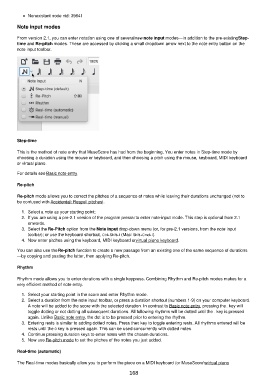
         From version 2.1, you can enter notation using one of several new note input modes—in addition to the pre-existing Step-
         time and Re-pitch modes. These are accessed by clicking a small dropdown arrow next to the note entry button on the
         note input toolbar.


         Step-time

         This is the method of note entry that MuseScore has had from the beginning. You enter notes in Step-time mode by
         choosing a duration using the mouse or keyboard, and then choosing a pitch using the mouse, keyboard, MIDI keyboard
         or virtual piano.

         For details see Basic note entry.

         Re-pitch


         Re-pitch mode allows you to correct the pitches of a sequence of notes while leaving their durations unchanged (not to
         be confused with Accidental: Respell pitches).

           1.  Select a note as your starting point;
           2.  If you are using a pre-2.1 version of the program press N to enter note-input mode. This step is optional from 2.1
             onwards.
           3.  Select the Re-Pitch option from the Note input drop-down menu (or, for pre-2.1 versions, from the note input
             toolbar); or use the keyboard shortcut, Ctrl+Shift+I (Mac: Shift+Cmd+I).
           4.  Now enter pitches using the keyboard, MIDI keyboard or virtual piano keyboard.

         You can also use the Re-pitch function to create a new passage from an existing one of the same sequence of durations
         —by copying and pasting the latter, then applying Re-pitch.

         Rhythm

         Rhythm mode allows you to enter durations with a single keypress. Combining Rhythm and Re-pitch modes makes for a
         very efficient method of note entry.

           1.  Select your starting point in the score and enter Rhythm mode.
           2.  Select a duration from the note input toolbar, or press a duration shortcut (numbers 1-9) on your computer keyboard.
             A note will be added to the score with the selected duration. In contrast to Basic note entry, pressing the . key will
             toggle dotting or not dotting all subsequent durations. All following rhythms will be dotted until the . key is pressed
             again. Unlike Basic note entry, the dot is to be pressed prior to entering the rhythm.
           3.  Entering rests is similar to adding dotted notes. Press the 0 key to toggle entering rests. All rhythms entered will be
             rests until the 0 key is pressed again. This can be used concurrently with dotted notes.
           4.  Continue pressing duration keys to enter notes with the chosen durations.
           5.  Now use Re-pitch mode to set the pitches of the notes you just added.

         Real-time (automatic)


         The Real-time modes basically allow you to perform the piece on a MIDI keyboard (or MuseScore's virtual piano
                                                          168

