


Page 159 - Computing E-Book Grade 7
P. 159
The City School  2021-2022


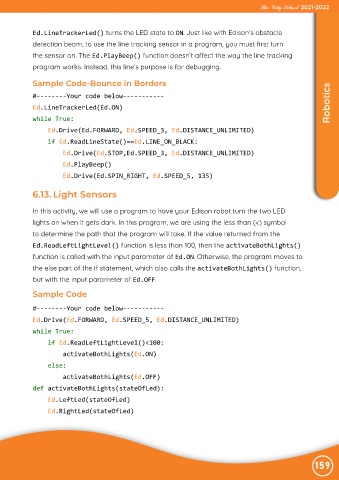
             Ed.LineTrackerLed() turns the LED state to ON. Just like with Edison’s obstacle
             detection beam, to use the line tracking sensor in a program, you must first turn

             the sensor on. The Ed.PlayBeep() function doesn’t affect the way the line tracking

             program works. Instead, this line’s purpose is for debugging.

            Sample Code-Bounce in Borders

             #--------Your code below-----------
             Ed.LineTrackerLed(Ed.ON)                                                                                Robotics

             while True:

                 Ed.Drive(Ed.FORWARD, Ed.SPEED_3, Ed.DISTANCE_UNLIMITED)
                 if Ed.ReadLineState()==Ed.LINE_ON_BLACK:
                     Ed.Drive(Ed.STOP,Ed.SPEED_3, Ed.DISTANCE_UNLIMITED)

                     Ed.PlayBeep()

                     Ed.Drive(Ed.SPIN_RIGHT, Ed.SPEED_5, 135)

            6.13. Light Sensors


             In this activity, we will use a program to have your Edison robot turn the two LED

             lights on when it gets dark. In this program, we are using the less than (<) symbol
             to determine the path that the program will take. If the value returned from the

             Ed.ReadLeftLightLevel() function is less than 100, then the activateBothLights()
             function is called with the input parameter of Ed.ON. Otherwise, the program moves to

             the else part of the if statement, which also calls the activateBothLights() function,
             but with the input parameter of Ed.OFF.

             Sample Code

             #--------Your code below-----------

             Ed.Drive(Ed.FORWARD, Ed.SPEED_5, Ed.DISTANCE_UNLIMITED)

             while True:
                 if Ed.ReadLeftLightLevel()<100:
                     activateBothLights(Ed.ON)

                 else:

                     activateBothLights(Ed.OFF)
             def activateBothLights(stateOfLed):
                 Ed.LeftLed(stateOfLed)

                 Ed.RightLed(stateOfLed)


                                                                                                                159

