


Page 107 - Windows 10 May 2019 Update The Missing Manual: The Book That Should Have Been in the Box
P. 107
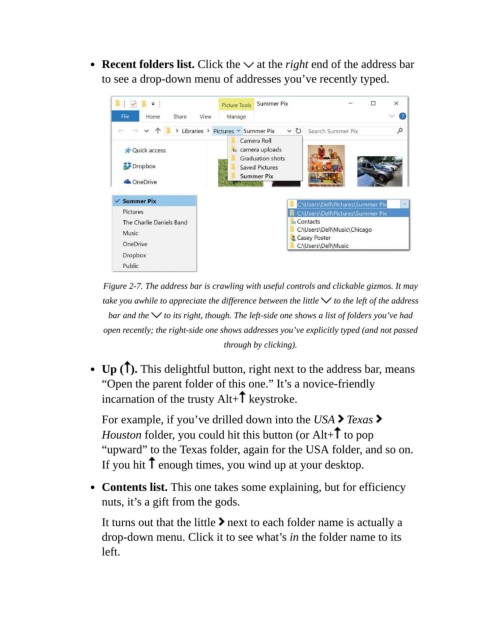
Recent folders list. Click the   at the right end of the address bar

                           to see a drop-down menu of addresses you’ve recently typed.


                           Figure 2-7. The address bar is crawling with useful controls and clickable gizmos. It may
                           take you awhile to appreciate the difference between the little    to the left of the address

                             bar and the    to its right, though. The left-side one shows a list of folders you’ve had
                           open recently; the right-side one shows addresses you’ve explicitly typed (and not passed
                                                          through by clicking).


                           Up ( ). This delightful button, right next to the address bar, means
                           “Open the parent folder of this one.” It’s a novice-friendly
                           incarnation of the trusty Alt+  keystroke.


                           For example, if you’ve drilled down into the USA   Texas
                           Houston folder, you could hit this button (or Alt+  to pop

                           “upward” to the Texas folder, again for the USA folder, and so on.
                           If you hit   enough times, you wind up at your desktop.


                           Contents list. This one takes some explaining, but for efficiency
                           nuts, it’s a gift from the gods.

                           It turns out that the little   next to each folder name is actually a

                           drop-down menu. Click it to see what’s in the folder name to its
                           left.

