


Page 442 - Windows 10 May 2019 Update The Missing Manual: The Book That Should Have Been in the Box
P. 442
Cursor & Pointer Size


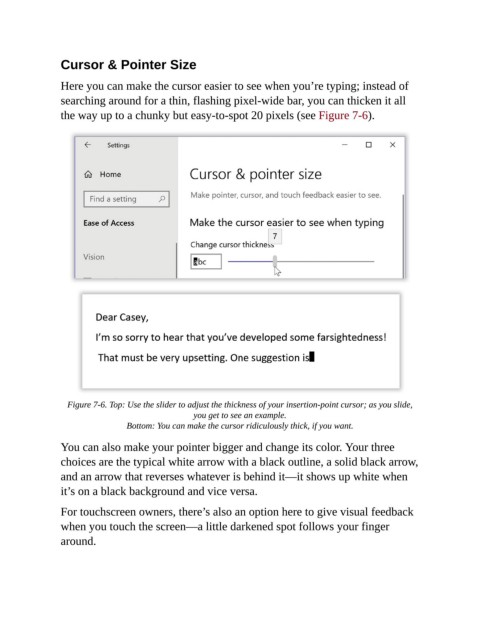
                Here you can make the cursor easier to see when you’re typing; instead of
                searching around for a thin, flashing pixel-wide bar, you can thicken it all
                the way up to a chunky but easy-to-spot 20 pixels (see Figure 7-6).


                  Figure 7-6. Top: Use the slider to adjust the thickness of your insertion-point cursor; as you slide,
                                                  you get to see an example.

                                 Bottom: You can make the cursor ridiculously thick, if you want.
                You can also make your pointer bigger and change its color. Your three

                choices are the typical white arrow with a black outline, a solid black arrow,
                and an arrow that reverses whatever is behind it—it shows up white when
                it’s on a black background and vice versa.

                For touchscreen owners, there’s also an option here to give visual feedback

                when you touch the screen—a little darkened spot follows your finger
                around.

