


Page 717 - Windows 10 May 2019 Update The Missing Manual: The Book That Should Have Been in the Box
P. 717
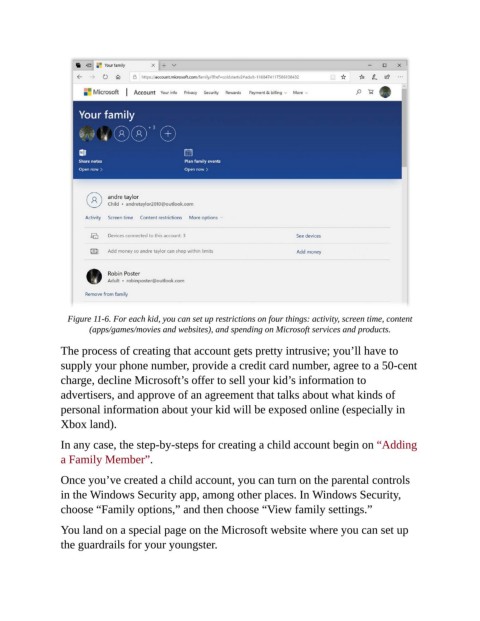
Figure 11-6. For each kid, you can set up restrictions on four things: activity, screen time, content
                        (apps/games/movies and websites), and spending on Microsoft services and products.

                The process of creating that account gets pretty intrusive; you’ll have to
                supply your phone number, provide a credit card number, agree to a 50-cent

                charge, decline Microsoft’s offer to sell your kid’s information to
                advertisers, and approve of an agreement that talks about what kinds of
                personal information about your kid will be exposed online (especially in

                Xbox land).

                In any case, the step-by-steps for creating a child account begin on “Adding
                a Family Member”.


                Once you’ve created a child account, you can turn on the parental controls
                in the Windows Security app, among other places. In Windows Security,
                choose “Family options,” and then choose “View family settings.”


                You land on a special page on the Microsoft website where you can set up
                the guardrails for your youngster.

