


Page 834 - Windows 10 May 2019 Update The Missing Manual: The Book That Should Have Been in the Box
P. 834
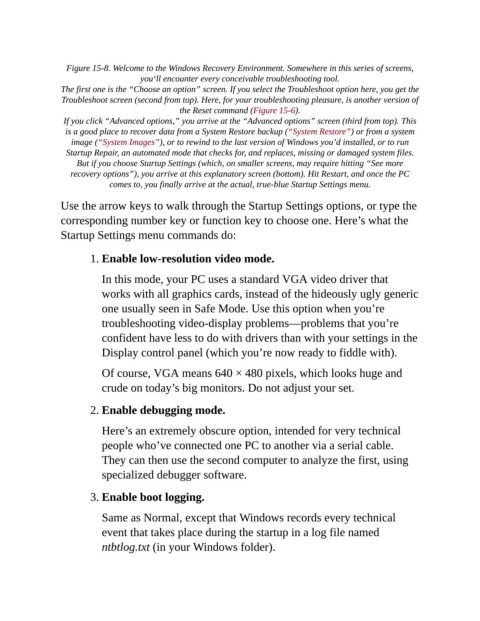
Figure 15-8. Welcome to the Windows Recovery Environment. Somewhere in this series of screens,
                                     you‘ll encounter every conceivable troubleshooting tool.

                The first one is the “Choose an option” screen. If you select the Troubleshoot option here, you get the
                 Troubleshoot screen (second from top). Here, for your troubleshooting pleasure, is another version of
                                               the Reset command (Figure 15-6).

                 If you click “Advanced options,” you arrive at the “Advanced options” screen (third from top). This
                  is a good place to recover data from a System Restore backup (“System Restore”) or from a system
                   image (“System Images”), or to rewind to the last version of Windows you’d installed, or to run
                  Startup Repair, an automated mode that checks for, and replaces, missing or damaged system files.
                    But if you choose Startup Settings (which, on smaller screens, may require hitting “See more
                   recovery options”), you arrive at this explanatory screen (bottom). Hit Restart, and once the PC
                             comes to, you finally arrive at the actual, true-blue Startup Settings menu.


                Use the arrow keys to walk through the Startup Settings options, or type the
                corresponding number key or function key to choose one. Here’s what the
                Startup Settings menu commands do:


                        1. Enable low-resolution video mode.

                           In this mode, your PC uses a standard VGA video driver that

                           works with all graphics cards, instead of the hideously ugly generic
                           one usually seen in Safe Mode. Use this option when you’re
                           troubleshooting video-display problems—problems that you’re

                           confident have less to do with drivers than with your settings in the
                           Display control panel (which you’re now ready to fiddle with).

                           Of course, VGA means 640 × 480 pixels, which looks huge and

                           crude on today’s big monitors. Do not adjust your set.

                        2. Enable debugging mode.


                           Here’s an extremely obscure option, intended for very technical
                           people who’ve connected one PC to another via a serial cable.
                           They can then use the second computer to analyze the first, using

                           specialized debugger software.

                        3. Enable boot logging.


                           Same as Normal, except that Windows records every technical
                           event that takes place during the startup in a log file named
                           ntbtlog.txt (in your Windows folder).

