


Page 99 - Windows 10 May 2019 Update The Missing Manual: The Book That Should Have Been in the Box
P. 99
POWER USERS’ CLINIC POWER KEYS FOR THE
                                                             RIBBON


                             The Ribbon is supposed to enhance your efficiency by putting
                             every conceivable command in one place, with nothing hidden.
                             But how efficient is a tool that requires mousing?


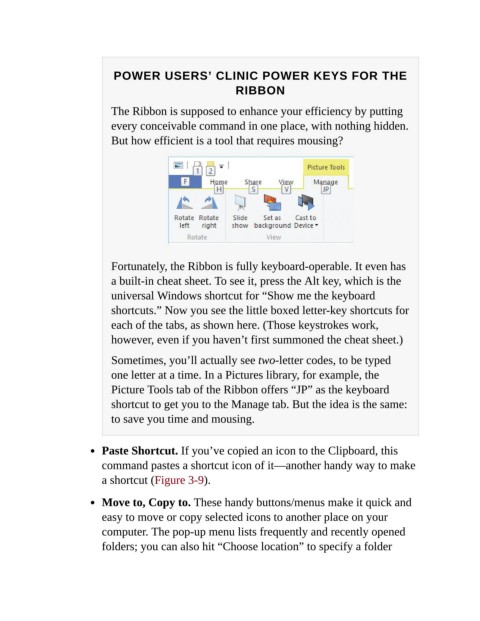
                             Fortunately, the Ribbon is fully keyboard-operable. It even has

                             a built-in cheat sheet. To see it, press the Alt key, which is the
                             universal Windows shortcut for “Show me the keyboard
                             shortcuts.” Now you see the little boxed letter-key shortcuts for

                             each of the tabs, as shown here. (Those keystrokes work,
                             however, even if you haven’t first summoned the cheat sheet.)

                             Sometimes, you’ll actually see two-letter codes, to be typed

                             one letter at a time. In a Pictures library, for example, the
                             Picture Tools tab of the Ribbon offers “JP” as the keyboard
                             shortcut to get you to the Manage tab. But the idea is the same:

                             to save you time and mousing.


                           Paste Shortcut. If you’ve copied an icon to the Clipboard, this
                           command pastes a shortcut icon of it—another handy way to make

                           a shortcut (Figure 3-9).

                           Move to, Copy to. These handy buttons/menus make it quick and
                           easy to move or copy selected icons to another place on your

                           computer. The pop-up menu lists frequently and recently opened
                           folders; you can also hit “Choose location” to specify a folder

