


Page 70 - Computing Book 4
P. 70
Let’s Program                                                                        Class 4


               Script Area:

               To get our sprites to animate, move, or interact with one another on the stage, we need to create
               one or more scripts for each sprite. If you click on a sprite from the list, the project editor will show
               the existing stacks of blocks in the scripts area.

               To create a game, story, or animation in Scratch, we stack blocks together to form a script that gives
               instructions to the project sprites.

               In the middle of the project editor screen, we have categories of blocks that are grouped by the
               kinds of tasks they represent.

               They are Motion, Looks, Sound, Pen, Data, Events, Control, Sensing, Operators, and More Blocks.
               We mix the blocks together to form our artwork. Each type of block is colour coded so that we can
               easily identify them by their type in our scripts.

               Motion (Movement Blocks):

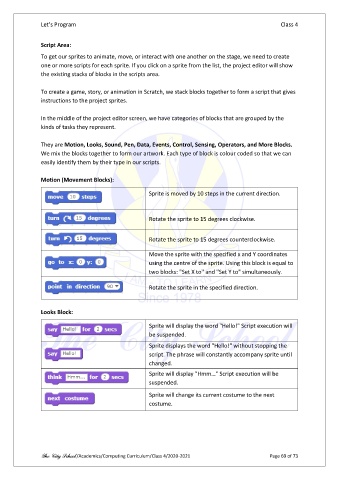
                                                     Sprite is moved by 10 steps in the current direction.


                                                     Rotate the sprite to 15 degrees clockwise.


                                                     Rotate the sprite to 15 degrees counterclockwise.

                                                     Move the sprite with the specified x and Y coordinates
                                                     using the centre of the sprite. Using this block is equal to

                                                     two blocks: "Set X to" and "Set Y to" simultaneously.

                                                     Rotate the sprite in the specified direction.


               Looks Block:

                                                     Sprite will display the word "Hello!" Script execution will
                                                     be suspended.
                                                     Sprite displays the word "Hello!" without stopping the
                                                     script. The phrase will constantly accompany sprite until

                                                     changed.
                                                     Sprite will display "Hmm…" Script execution will be
                                                     suspended.

                                                     Sprite will change its current costume to the next
                                                     costume.


               The City School /Academics/Computing Curriculum/Class 4/2020-2021                Page 69 of 73

