


Page 6 - fjs-genero-3.00.02-manual-install_Neat
P. 6
Genero Installation Guide | 6


                 client software will sit on the client machine (or be delivered to a browser that sits on the client machine).
                 For more information, refer to the various User Guides to see different architecture scenarios.


            Software package names

                 To ensure you are installing the correct software, you must be able to interpret a Genero package
                 filename.
                 A Four Js or Genero software package follows a specific naming convention:
                 fjs-product-version-build-osident.extension
                 where:

                 •  product is the product identifier
                 •  version is the release number of the software
                 •  build is the build number
                 •  osident is the operating system identifier
                 •  extension is run on UNIX platforms, exe on Windows platforms, and dmg or run on OS X platforms.


                 Examples
                 fjs-fglgws-2.50.00-build2239_gws126106-a640610.run
                 fjs-fglgws-2.50.00-build2239_gws126106-w64v100.exe
                 fjs-gdc-2.50.03-build4949-l64lx25.run


            Installation troubleshooting tips

                 If you have an issue during installation, generating a log of the installation can provide valuable information
                 for support.
                 How you log an installation of a Genero package depends on your operating system.

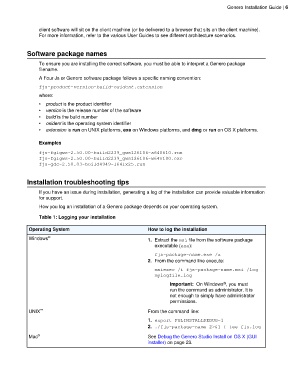
                 Table 1: Logging your installation

             Operating System                                  How to log the installation

             Windows ®                                         1. Extract the msi file from the software package
                                                                  executable (exe):
                                                                  fjs-package-name.exe /x
                                                               2. From the command line execute:
                                                                  msiexec /i fjs-package-name.msi /log
                                                                  mylogfile.log

                                                                                              ®
                                                                        Important:  On Windows , you must
                                                                        run the command as administrator. It is
                                                                        not enough to simply have administrator
                                                                        permissions.

             UNIX ™                                            From the command line:
                                                               1. export FGLINSTALLDEBUG=1
                                                               2. ./fjs-package-name 2>&1 | tee fjs.log
             Mac ®                                             See Debug the Genero Studio Install on OS X (GUI
                                                               installer) on page 23.

