


Page 29 - TCS ICT Book 6
P. 29
The City School  2021-2022


             To make data labels easier to read, you can move them inside the data points or even

             outside of the chart. To move a data label, drag it to the location you want. Excel allows
             you to add chart elements such as chart titles, legends, and data labels to make your

             chart easier to read.


             Quick Chart Layouts

             If you don’t want to add chart elements                                                                Analysing Data

             individually, you can use one of Excel’s
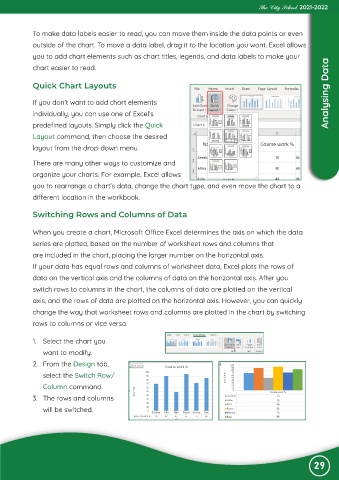
             predefined layouts. Simply click the Quick

             Layout command, then choose the desired
             layout from the drop-down menu.


             There are many other ways to customize and
             organize your charts. For example, Excel allows

             you to rearrange a chart’s data, change the chart type, and even move the chart to a
             different location in the workbook.


             Switching Rows and Columns of Data


             When you create a chart, Microsoft Office Excel determines the axis on which the data
             series are plotted, based on the number of worksheet rows and columns that

             are included in the chart, placing the larger number on the horizontal axis.
             If your data has equal rows and columns of worksheet data, Excel plots the rows of

             data on the vertical axis and the columns of data on the horizontal axis. After you
             switch rows to columns in the chart, the columns of data are plotted on the vertical

             axis, and the rows of data are plotted on the horizontal axis. However, you can quickly
             change the way that worksheet rows and columns are plotted in the chart by switching

             rows to columns or vice versa.


             1.  Select the chart you
                want to modify.

             2.  From the Design tab,
                select the Switch Row/

                Column command.
             3.  The rows and columns

                will be switched.


                                                                                                               29

