


Page 57 - Learn To Use HTML and CSS
P. 57
So You Want to Learn to Use HTML and CSS – Version 2020-06-12a                        Page 47
               Chapter 4 — Anchors and URLs


             Free


             eBook

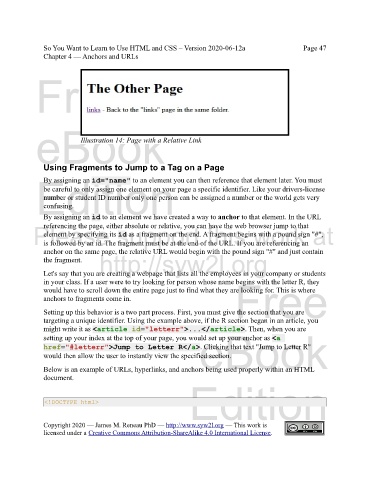
                            Illustration 14: Page with a Relative Link


               Using Fragments to Jump to a Tag on a Page
             Edition
               By assigning an id="name" to an element you can then reference that element later. You must
               be careful to only assign one element on your page a specific identifier. Like your drivers-license
               number or student ID number only one person can be assigned a number or the world gets very
               confusing.
               By assigning an id to an element we have created a way to anchor to that element. In the URL
               referencing the page, either absolute or relative, you can have the web browser jump to that
            Please support this work at
               element by specifying its id as a fragment on the end. A fragment begins with a pound sign "#",
               is followed by an id. The fragment must be at the end of the URL. If you are referencing an
               anchor on the same page, the relative URL would begin with the pound sign "#" and just contain
               the fragment.      http://syw2l.org

               Let's say that you are creating a webpage that lists all the employees in your company or students
               in your class. If a user were to try looking for person whose name begins with the letter R, they
               would have to scroll down the entire page just to find what they are looking for. This is where
               anchors to fragments come in.                                   Free

               Setting up this behavior is a two part process. First, you must give the section that you are
               targeting a unique identifier. Using the example above, if the R section began in an article, you
               might write it as <article id="letterr">...</article>. Then, when you are
                                                                   eBook
               setting up your index at the top of your page, you would set up your enchor as <a
               href="#letterr">Jump to Letter R</a>. Clicking that text "Jump to Letter R"
               would then allow the user to instantly view the specified section.

               Below is an example of URLs, hyperlinks, and anchors being used properly within an HTML
               document.
                                                                Edition


                <!DOCTYPE html>


               Copyright 2020 — James M. Reneau PhD — http://www.syw2l.org — This work is
               licensed under a Creative Commons Attribution-ShareAlike 4.0 International License.

