


Page 23 - SALES QUIDE QUICK REF RON
P. 23
CREATING A CUSTOMER SPECIAL ORDER
When ordering items for a customer, without exception, it is company policy
that you ALWAYS START by creating a ‘Customer Order’.
During this process you will create a ‘Purchase Order’ that is permanently
linked to the customer order.
If you start the process creating a ‘Purchase Order’ there is no way to link
everything together at any point in the future!
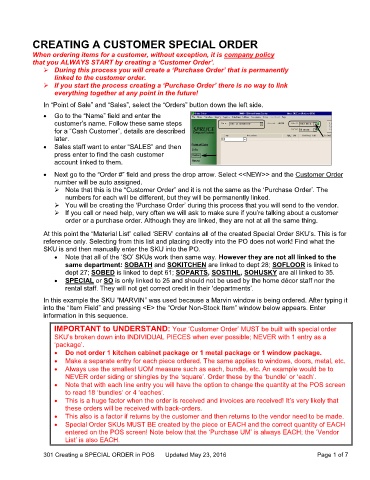
In “Point of Sale” and “Sales”, select the “Orders” button down the left side.
Go to the “Name” field and enter the
customer’s name. Follow these same steps
for a “Cash Customer”, details are described
later.
Sales staff want to enter “SALES” and then
press enter to find the cash customer
account linked to them.
Next go to the “Order #” field and press the drop arrow. Select <<NEW>> and the Customer Order
number will be auto assigned.
Note that this is the “Customer Order” and it is not the same as the ‘Purchase Order’. The
numbers for each will be different, but they will be permanently linked.
You will be creating the ‘Purchase Order’ during this process that you will send to the vendor.
If you call or need help, very often we will ask to make sure if you’re talking about a customer
order or a purchase order. Although they are linked, they are not at all the same thing.
At this point the “Material List” called ‘SERV’ contains all of the created Special Order SKU’s. This is for
reference only. Selecting from this list and placing directly into the PO does not work! Find what the
SKU is and then manually enter the SKU into the PO.
Note that all of the ‘SO’ SKUs work then same way. However they are not all linked to the
same department: SOBATH and SOKITCHEN are linked to dept 28; SOFLOOR is linked to
dept 27; SOBED is linked to dept 61; SOPARTS, SOSTIHL, SOHUSKY are all linked to 35.
SPECIAL or SO is only linked to 25 and should not be used by the home décor staff nor the
rental staff. They will not get correct credit in their ‘departments’.
In this example the SKU “MARVIN” was used because a Marvin window is being ordered. After typing it
into the “Item Field” and pressing <E> the “Order Non-Stock Item” window below appears. Enter
information in this sequence.
IMPORTANT to UNDERSTAND: Your ‘Customer Order’ MUST be built with special order
SKU’s broken down into INDIVIDUAL PIECES when ever possible; NEVER with 1 entry as a
‘package’.
Do not order 1 kitchen cabinet package or 1 metal package or 1 window package.
Make a separate entry for each piece ordered. The same applies to windows, doors, metal, etc.
Always use the smallest UOM measure such as each, bundle, etc. An example would be to
NEVER order siding or shingles by the ‘square’. Order these by the ‘bundle’ or ‘each’.
Note that with each line entry you will have the option to change the quantity at the POS screen
to read 18 ‘bundles’ or 4 ‘eaches’.
This is a huge factor when the order is received and invoices are received! It’s very likely that
these orders will be received with back-orders.
This also is a factor if returns by the customer and then returns to the vendor need to be made.
Special Order SKUs MUST BE created by the piece or EACH and the correct quantity of EACH
entered on the POS screen! Note below that the ‘Purchase UM’ is always EACH; the ‘Vendor
List’ is also EACH.
301 Creating a SPECIAL ORDER in POS Updated May 23, 2016 Page 1 of 7

