


Page 113 - Windows 10 May 2019 Update The Missing Manual: The Book That Should Have Been in the Box
P. 113
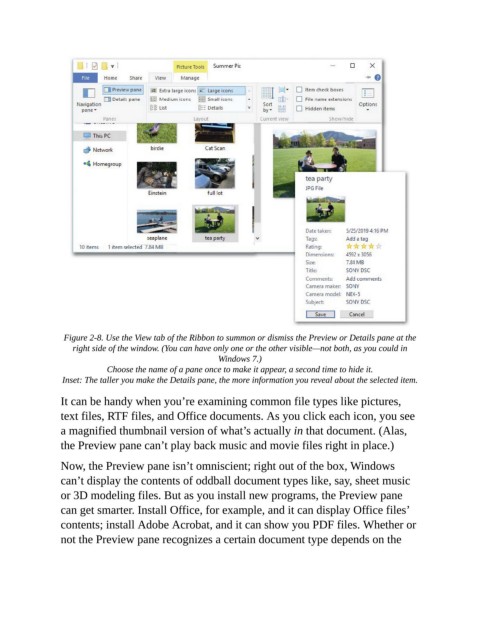
Figure 2-8. Use the View tab of the Ribbon to summon or dismiss the Preview or Details pane at the
                   right side of the window. (You can have only one or the other visible—not both, as you could in
                                                         Windows 7.)

                            Choose the name of a pane once to make it appear, a second time to hide it.

                 Inset: The taller you make the Details pane, the more information you reveal about the selected item.
                It can be handy when you’re examining common file types like pictures,
                text files, RTF files, and Office documents. As you click each icon, you see

                a magnified thumbnail version of what’s actually in that document. (Alas,
                the Preview pane can’t play back music and movie files right in place.)

                Now, the Preview pane isn’t omniscient; right out of the box, Windows

                can’t display the contents of oddball document types like, say, sheet music
                or 3D modeling files. But as you install new programs, the Preview pane
                can get smarter. Install Office, for example, and it can display Office files’

                contents; install Adobe Acrobat, and it can show you PDF files. Whether or
                not the Preview pane recognizes a certain document type depends on the

