


Page 196 - Windows 10 May 2019 Update The Missing Manual: The Book That Should Have Been in the Box
P. 196
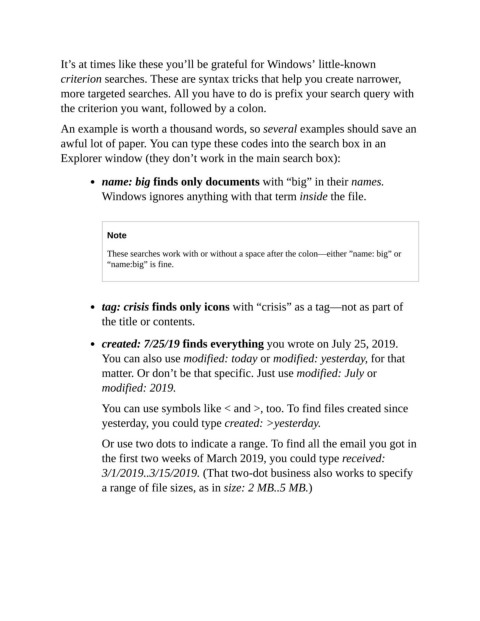
It’s at times like these you’ll be grateful for Windows’ little-known

                criterion searches. These are syntax tricks that help you create narrower,
                more targeted searches. All you have to do is prefix your search query with
                the criterion you want, followed by a colon.

                An example is worth a thousand words, so several examples should save an

                awful lot of paper. You can type these codes into the search box in an
                Explorer window (they don’t work in the main search box):


                           name: big finds only documents with “big” in their names.
                           Windows ignores anything with that term inside the file.


                            Note

                            These searches work with or without a space after the colon—either ”name: big” or
                            “name:big” is fine.


                           tag: crisis finds only icons with “crisis” as a tag—not as part of
                           the title or contents.


                           created: 7/25/19 finds everything you wrote on July 25, 2019.
                           You can also use modified: today or modified: yesterday, for that
                           matter. Or don’t be that specific. Just use modified: July or

                           modified: 2019.

                           You can use symbols like < and >, too. To find files created since
                           yesterday, you could type created: >yesterday.


                           Or use two dots to indicate a range. To find all the email you got in
                           the first two weeks of March 2019, you could type received:
                           3/1/2019..3/15/2019. (That two-dot business also works to specify

                           a range of file sizes, as in size: 2 MB..5 MB.)

