


Page 195 - Windows 10 May 2019 Update The Missing Manual: The Book That Should Have Been in the Box
P. 195
filename extension .search-ms.) Windows proposes stashing it in

                           your Saved Searches folder, inside your personal folder, but you
                           can choose any location you like—including the desktop.

                           Whenever you click the saved search, you get an instantaneous
                           update of the search you originally set up.


                           The idea is to save you time when you regularly have to set up the
                           same search; for example, maybe every week you have to round up
                           all the documents authored by you that pertain to the Higgins

                           proposal and save them to a flash drive. A search folder can do the
                           rounding-up part with a single click. These items’ real locations
                           may be all over the map, scattered in folders throughout your PC.

                           But through the magic of the saved search, they appear as though
                           they’re all in one neat window.


                  Note

                  Unfortunately, there’s no easy way to edit a search folder. If you decide your original search
                  criteria need a little fine-tuning, the simplest procedure is to set up a new search—correctly this
                  time—and save it with the same name as the first one; accept Windows’ offer to replace the old
                  one with the new.


                Incidentally: Search filters work by hiding all the icons that don’t match. So
                don’t be alarmed if you click Size and then Small—and most of the files in
                your window suddenly disappear. Windows is doing what it thinks you
                wanted—showing you only the small files—in real time, as you adjust the

                filters.

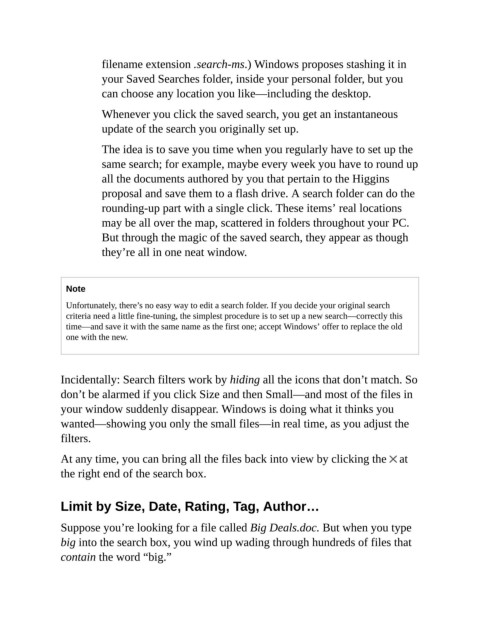
                At any time, you can bring all the files back into view by clicking the   at
                the right end of the search box.


                Limit by Size, Date, Rating, Tag, Author…

                Suppose you’re looking for a file called Big Deals.doc. But when you type
                big into the search box, you wind up wading through hundreds of files that

                contain the word “big.”

