


Page 297 - Windows 10 May 2019 Update The Missing Manual: The Book That Should Have Been in the Box
P. 297
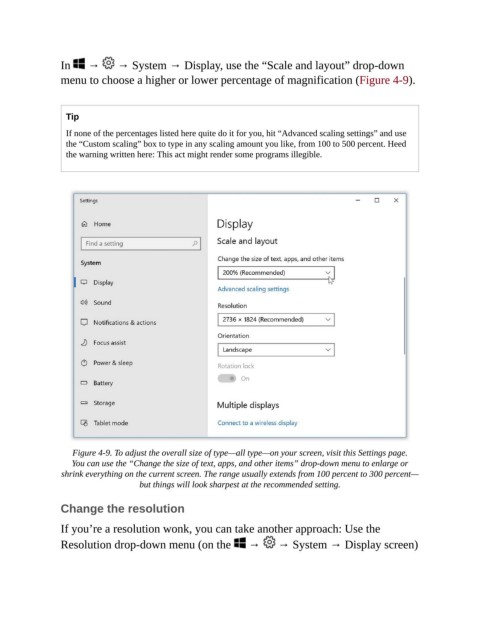
In   →   → System → Display, use the “Scale and layout” drop-down

                menu to choose a higher or lower percentage of magnification (Figure 4-9).


                  Tip
                  If none of the percentages listed here quite do it for you, hit “Advanced scaling settings” and use
                  the “Custom scaling” box to type in any scaling amount you like, from 100 to 500 percent. Heed
                  the warning written here: This act might render some programs illegible.


                   Figure 4-9. To adjust the overall size of type—all type—on your screen, visit this Settings page.
                   You can use the “Change the size of text, apps, and other items” drop-down menu to enlarge or
                 shrink everything on the current screen. The range usually extends from 100 percent to 300 percent—
                                     but things will look sharpest at the recommended setting.


                Change the resolution

                If you’re a resolution wonk, you can take another approach: Use the

                Resolution drop-down menu (on the   →   → System → Display screen)

