


Page 302 - Windows 10 May 2019 Update The Missing Manual: The Book That Should Have Been in the Box
P. 302
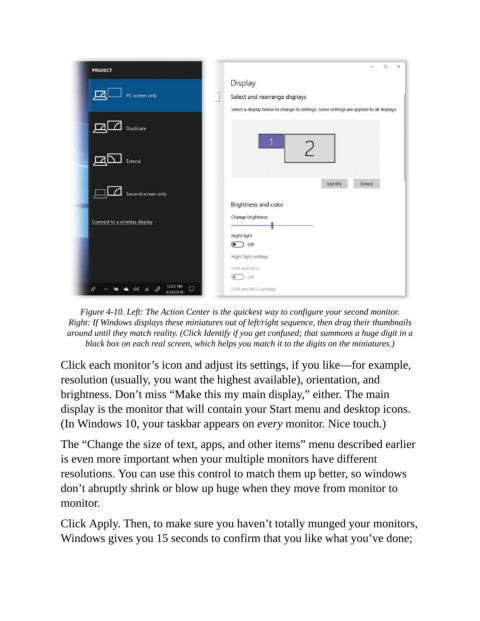
Figure 4-10. Left: The Action Center is the quickest way to configure your second monitor.

                  Right: If Windows displays these miniatures out of left/right sequence, then drag their thumbnails
                  around until they match reality. (Click Identify if you get confused; that summons a huge digit in a
                       black box on each real screen, which helps you match it to the digits on the miniatures.)

                Click each monitor’s icon and adjust its settings, if you like—for example,

                resolution (usually, you want the highest available), orientation, and
                brightness. Don’t miss “Make this my main display,” either. The main
                display is the monitor that will contain your Start menu and desktop icons.
                (In Windows 10, your taskbar appears on every monitor. Nice touch.)


                The “Change the size of text, apps, and other items” menu described earlier
                is even more important when your multiple monitors have different
                resolutions. You can use this control to match them up better, so windows

                don’t abruptly shrink or blow up huge when they move from monitor to
                monitor.

                Click Apply. Then, to make sure you haven’t totally munged your monitors,

                Windows gives you 15 seconds to confirm that you like what you’ve done;

