


Page 502 - Windows 10 May 2019 Update The Missing Manual: The Book That Should Have Been in the Box
P. 502
If an event in your life gets rescheduled, you can drag an appointment block

                vertically in a Day- or Week-view column to make it later or earlier the
                same day, or horizontally to another date in any view. (If you reschedule a
                recurring event, Calendar asks if you want to change only this occurrence,
                or this one and all future ones.)


                If something is postponed for, say, a month or two, too bad. You can’t drag
                an appointment beyond its month window. You have no choice but to open
                the Edit box and edit the starting and ending dates or times—or just cut and

                paste the event to the new date.


                Lengthening or shortening events

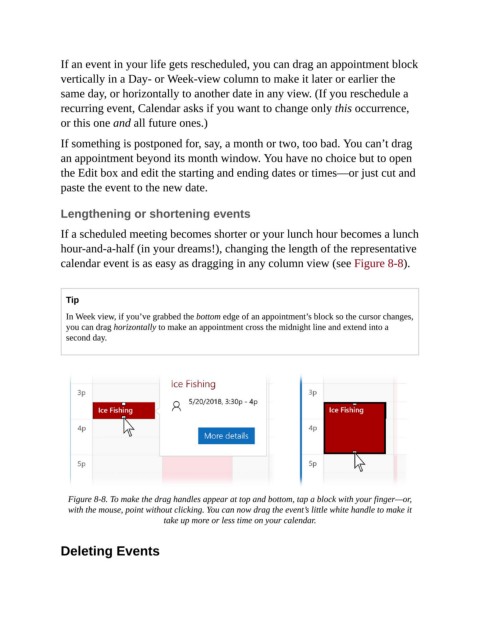
                If a scheduled meeting becomes shorter or your lunch hour becomes a lunch
                hour-and-a-half (in your dreams!), changing the length of the representative

                calendar event is as easy as dragging in any column view (see Figure 8-8).


                  Tip

                  In Week view, if you’ve grabbed the bottom edge of an appointment’s block so the cursor changes,
                  you can drag horizontally to make an appointment cross the midnight line and extend into a
                  second day.


                  Figure 8-8. To make the drag handles appear at top and bottom, tap a block with your finger—or,
                  with the mouse, point without clicking. You can now drag the event’s little white handle to make it
                                           take up more or less time on your calendar.


                Deleting Events

