


Page 806 - Windows 10 May 2019 Update The Missing Manual: The Book That Should Have Been in the Box
P. 806
Tip

                  To find out which company created a certain driver, double-click the component’s name in the
                  Device Manager. In the resulting Properties dialog box, click the General tab, where you see the
                  name of the company, and the Driver tab, where you see the date the driver was created, the
                  version of the driver, and so on.


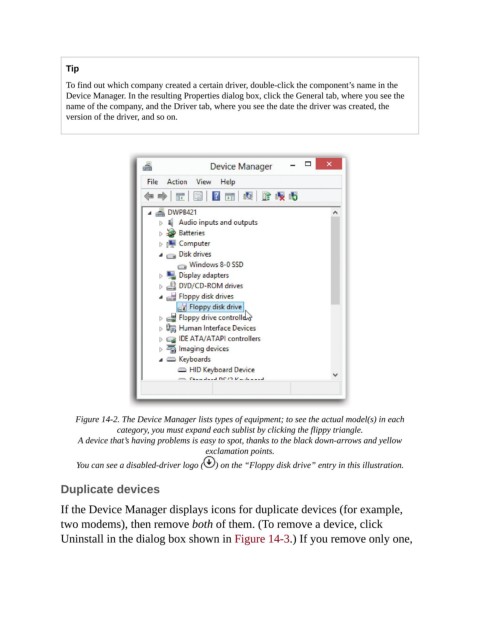
                    Figure 14-2. The Device Manager lists types of equipment; to see the actual model(s) in each
                               category, you must expand each sublist by clicking the flippy triangle.

                     A device that’s having problems is easy to spot, thanks to the black down-arrows and yellow
                                                     exclamation points.

                    You can see a disabled-driver logo (  ) on the “Floppy disk drive” entry in this illustration.


                Duplicate devices

                If the Device Manager displays icons for duplicate devices (for example,
                two modems), then remove both of them. (To remove a device, click

                Uninstall in the dialog box shown in Figure 14-3.) If you remove only one,

