


Page 808 - Windows 10 May 2019 Update The Missing Manual: The Book That Should Have Been in the Box
P. 808
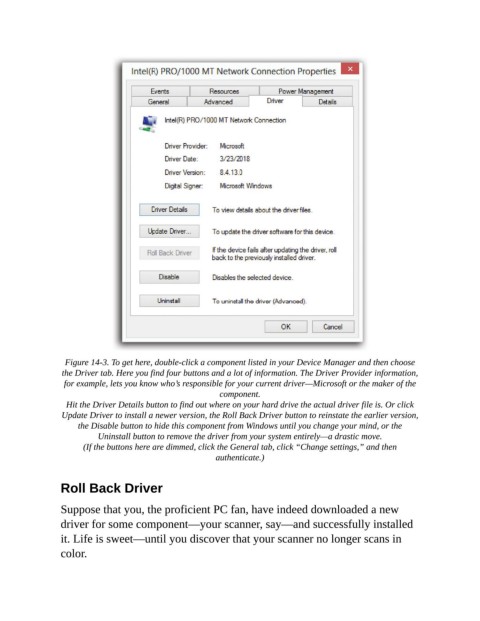
Figure 14-3. To get here, double-click a component listed in your Device Manager and then choose
                 the Driver tab. Here you find four buttons and a lot of information. The Driver Provider information,
                 for example, lets you know who’s responsible for your current driver—Microsoft or the maker of the
                                                         component.

                  Hit the Driver Details button to find out where on your hard drive the actual driver file is. Or click
                 Update Driver to install a newer version, the Roll Back Driver button to reinstate the earlier version,
                     the Disable button to hide this component from Windows until you change your mind, or the
                          Uninstall button to remove the driver from your system entirely—a drastic move.

                      (If the buttons here are dimmed, click the General tab, click “Change settings,” and then
                                                        authenticate.)


                Roll Back Driver

                Suppose that you, the proficient PC fan, have indeed downloaded a new
                driver for some component—your scanner, say—and successfully installed

                it. Life is sweet—until you discover that your scanner no longer scans in
                color.

