


Page 39 - Super Scratch Programming Adventure -2nd Edition
P. 39
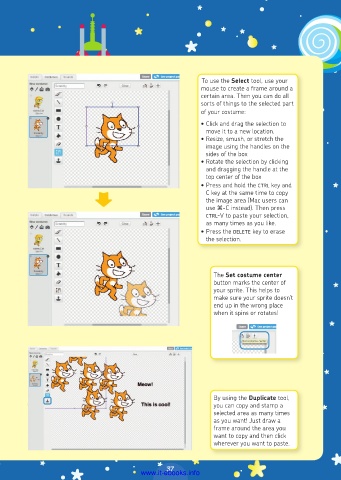
To use the Select tool, use your
mouse to create a frame around a
certain area. Then you can do all
sorts of things to the selected part
of your costume:
• Click and drag the selection to
move it to a new location.
• Resize, smush, or stretch the
image using the handles on the
sides of the box
• Rotate the selection by clicking
and dragging the handle at the
top center of the box
• Press and hold the ctrl key and
C key at the same time to copy
the image area (Mac users can
use -C instead). Then press
ctrl-V to paste your selection,
as many times as you like.
• Press the delete key to erase
the selection.
The Set costume center
button marks the center of
your sprite. This helps to
make sure your sprite doesn’t
end up in the wrong place
when it spins or rotates!
By using the Duplicate tool,
you can copy and stamp a
selected area as many times
as you want! Just draw a
frame around the area you
want to copy and then click
wherever you want to paste.
37
www.it-ebooks.info

