


Page 152 - Super Scratch Programming Adventure -1st Edition
P. 152
Getting Started with the
               PicoBoard

               Follow the instructions provided with the kit to install your Pico-
               Board. Once it’s connected to your computer via a USB cord, you
               can write programs that use the PicoBoard’s sensors.
                   Before you begin, you should test that everything is work-
               ing. Run Scratch, click the Sensing palette, and find the blocks
               called slider sensor value and sensor button pressed. These blocks
               let you use the PicoBoard’s sensors in your own programs.
                   Click the checkbox next to slider sensor value, and its mea-
               surement will appear on the Stage. When the slider moves back
               and forth, the slider’s sensor value changes and the numbers on
               the Stage will change, too.
                   If your values don’t  change as the slider moves, try recon-
               necting the PicoBoard.


               Note        If you want to test a sensor other than the slider, just
                           click the drop-down menu and select the sensor you
                           want to test. Click the checkbox again and the vari-
                           able appears on the Stage.

                   The sensor values range from 0 to 100. The sensor button
               pressed value is true or false. To use the blocks in your programs,
               you just need to drag them to the Scripts Area for your sprite,
               just like with any other block.
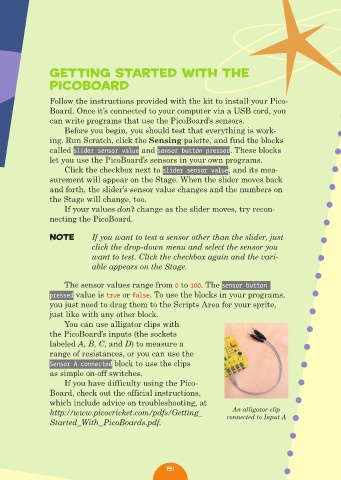
                   You can use alligator clips with
               the PicoBoard’s inputs (the sockets
               labeled A, B, C, and D) to measure a
               range of resistances, or you can use the
               Sensor A connected block to use the clips
               as simple on-off switches.
                   If you have difficulty using the Pico-
               Board, check out the official instructions,
               which include advice on troubleshooting, at
               http://www.picocricket.com/pdfs/Getting_            An alligator clip
                                                                  connected to Input A
               Started_With_PicoBoards.pdf.


                                                151

