


Page 227 - Scratch Programming Playground
P. 227
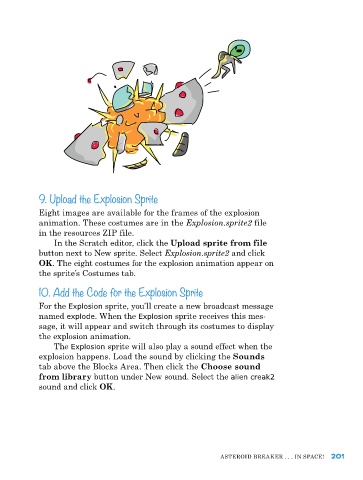
9. Upload the Explosion Sprite

            eight images are available for the frames of the explosion
            animation. These costumes are in the Explosion.sprite2 file
            in the resources ZIp file.
                In the Scratch editor, click the Upload sprite from file
            button next to new sprite. Select Explosion.sprite2 and click
            OK. The eight costumes for the explosion animation appear on
            the sprite’s Costumes tab.
            10. Add the Code for the Explosion Sprite

            For the Explosion sprite, you’ll create a new broadcast message
            named explode. When the Explosion sprite receives this mes-
            sage, it will appear and switch through its costumes to display
            the explosion animation.
                The Explosion sprite will also play a sound effect when the
            explosion happens. Load the sound by clicking the Sounds
            tab above the Blocks Area. Then click the Choose sound

            from library button under new sound. Select the alien creak2
            sound and click OK.


                                                              ASTeroID BreAker . . . In SpACe!  201

