


Page 67 - MuseScore 2.0 handbook
P. 67
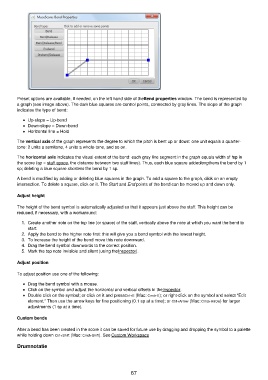
Preset options are available, if needed, on the left hand side of the Bend properties window. The bend is represented by
         a graph (see image above). The dark blue squares are control points, connected by gray lines. The slope of the graph
         indicates the type of bend:
             Up-slope = Up-bend
             Down-slope = Down-bend
             Horizontal line = Hold
         The vertical axis of the graph represents the degree to which the pitch is bent up or down: one unit equals a quarter-
         tone: 2 units a semitone, 4 units a whole-tone, and so on.

         The horizontal axis indicates the visual extent of the bend: each gray line segment in the graph equals width of 1 sp in
         the score (sp = staff space, the distance between two staff lines). Thus, each blue square added lengthens the bend by 1
         sp; deleting a blue square shortens the bend by 1 sp.

         A bend is modified by adding or deleting blue squares in the graph. To add a square to the graph, click on an empty
         intersection. To delete a square, click on it. The Start and End points of the bend can be moved up and down only.

         Adjust height


         The height of the bend symbol is automatically adjusted so that it appears just above the staff. This height can be
         reduced, if necessary, with a workaround:

           1.  Create another note on the top line (or space) of the staff, vertically above the note at which you want the bend to
             start.
           2.  Apply the bend to the higher note first: this will give you a bend symbol with the lowest height.
           3.  To increase the height of the bend move this note downward.
           4.  Drag the bend symbol downwards to the correct position.
           5.  Mark the top note invisible and silent (using the Inspector).

         Adjust position

         To adjust position use one of the following:

             Drag the bend symbol with a mouse.
             Click on the symbol and adjust the horizontal and vertical offsets in the Inspector.
             Double click on the symbol; or click on it and press Ctrl+E (Mac: Cmd+E); or right-click on the symbol and select "Edit
             element." Then use the arrow keys for fine positioning (0.1 sp at a time); or Ctrl+Arrow (Mac: Cmd+Arrow) for larger
             adjustments (1 sp at a time).

         Custom bends

         After a bend has been created in the score it can be saved for future use by dragging and dropping the symbol to a palette
         while holding down Ctrl+Shift (Mac: Cmd+Shift). See Custom Workspace

         Drumnotatie


                                                           67

