


Page 101 - Computing E-Book Grade 7
P. 101
The City School  2021-2022


             Google Maps on Phone


             1.  On your Android phone or tablet, open the Google Maps app.
             2.  Search for a place or tap it on the map.

             3.  In the bottom left, tap Directions. If you touch and hold the button instead, you’ll

                 start navigation and can skip steps 4-6.
             4.  Optional: To add additional destinations, go to the top right and tap More           and           All About Cloud
                 then Add stop. You can add up to 9 stops. When you are finished, tap Done.

             5.  Choose one of the following:

                   •  Driving:
                   •  Transit:
                   •  Walking:

                   •  Rides:

                   •  Cycling:
             6.  If other routes are available, they will be shown in gray on the map. To follow an
                 alternate route, tap the gray line.

             7.  To start navigation, tap Start Start. If you see searching for GPS, your phone is

                 trying to get a GPS signal. For example, you might be in or near a tunnel, parking
                 garage, or other location where there’s no GPS signal.
             8.  To stop or cancel navigation, go to the bottom left and tap Close Close.


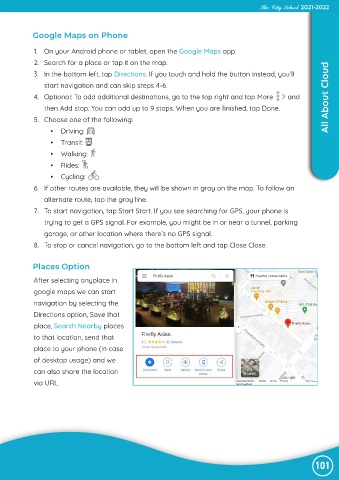
             Places Option

             After selecting anyplace in

             google maps we can start
             navigation by selecting the

             Directions option, Save that
             place, Search Nearby places

             to that location, send that
             place to your phone (in case

             of desktop usage) and we
             can also share the location

             via URL.


                                                                                                                101

