


Page 119 - Windows 10 May 2019 Update The Missing Manual: The Book That Should Have Been in the Box
P. 119
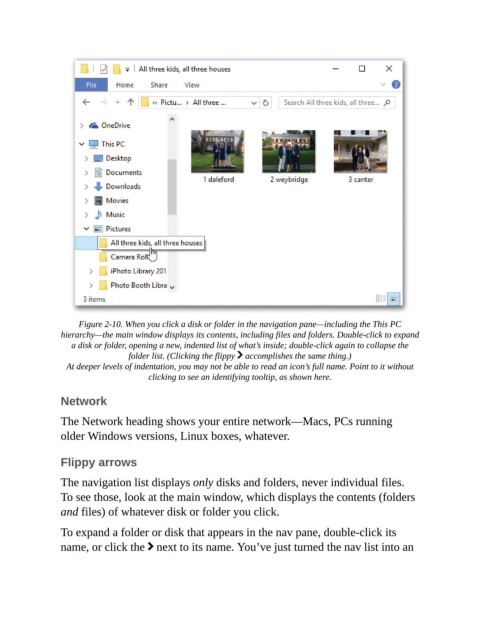
Figure 2-10. When you click a disk or folder in the navigation pane—including the This PC
                hierarchy—the main window displays its contents, including files and folders. Double-click to expand
                   a disk or folder, opening a new, indented list of what’s inside; double-click again to collapse the
                                  folder list. (Clicking the flippy   accomplishes the same thing.)

                  At deeper levels of indentation, you may not be able to read an icon’s full name. Point to it without
                                       clicking to see an identifying tooltip, as shown here.


                Network

                The Network heading shows your entire network—Macs, PCs running
                older Windows versions, Linux boxes, whatever.


                Flippy arrows

                The navigation list displays only disks and folders, never individual files.
                To see those, look at the main window, which displays the contents (folders
                and files) of whatever disk or folder you click.


                To expand a folder or disk that appears in the nav pane, double-click its
                name, or click the   next to its name. You’ve just turned the nav list into an

