


Page 144 - Windows 10 May 2019 Update The Missing Manual: The Book That Should Have Been in the Box
P. 144
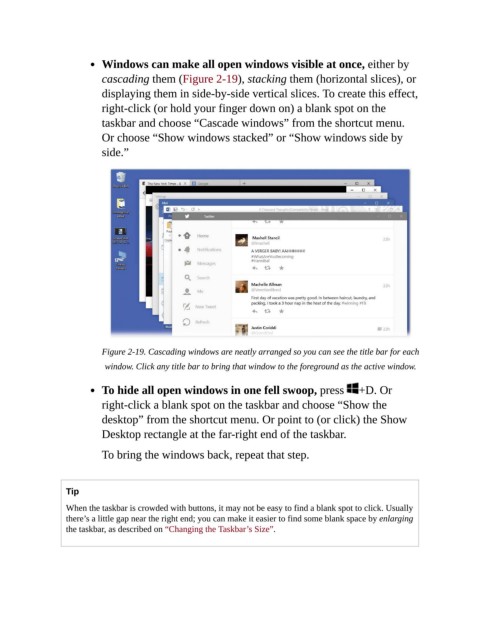
Windows can make all open windows visible at once, either by

                           cascading them (Figure 2-19), stacking them (horizontal slices), or
                           displaying them in side-by-side vertical slices. To create this effect,
                           right-click (or hold your finger down on) a blank spot on the
                           taskbar and choose “Cascade windows” from the shortcut menu.

                           Or choose “Show windows stacked” or “Show windows side by
                           side.”


                           Figure 2-19. Cascading windows are neatly arranged so you can see the title bar for each

                            window. Click any title bar to bring that window to the foreground as the active window.

                           To hide all open windows in one fell swoop, press  +D. Or

                           right-click a blank spot on the taskbar and choose “Show the
                           desktop” from the shortcut menu. Or point to (or click) the Show
                           Desktop rectangle at the far-right end of the taskbar.


                           To bring the windows back, repeat that step.


                  Tip
                  When the taskbar is crowded with buttons, it may not be easy to find a blank spot to click. Usually
                  there’s a little gap near the right end; you can make it easier to find some blank space by enlarging
                  the taskbar, as described on “Changing the Taskbar’s Size”.

