


Page 264 - Windows 10 May 2019 Update The Missing Manual: The Book That Should Have Been in the Box
P. 264
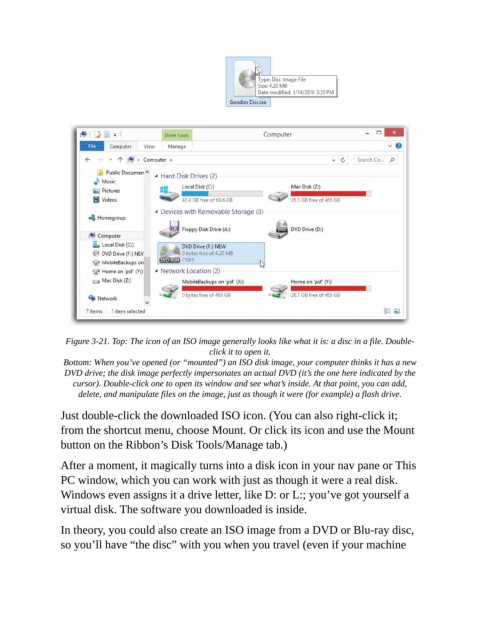
Figure 3-21. Top: The icon of an ISO image generally looks like what it is: a disc in a file. Double-
                                                      click it to open it.

                 Bottom: When you’ve opened (or “mounted”) an ISO disk image, your computer thinks it has a new
                 DVD drive; the disk image perfectly impersonates an actual DVD (it’s the one here indicated by the
                    cursor). Double-click one to open its window and see what’s inside. At that point, you can add,
                     delete, and mani pulate files on the image, just as though it were (for example) a flash drive.

                Just double-click the downloaded ISO icon. (You can also right-click it;

                from the shortcut menu, choose Mount. Or click its icon and use the Mount
                button on the Ribbon’s Disk Tools/Manage tab.)

                After a moment, it magically turns into a disk icon in your nav pane or This

                PC window, which you can work with just as though it were a real disk.
                Windows even assigns it a drive letter, like D: or L:; you’ve got yourself a
                virtual disk. The software you downloaded is inside.


                In theory, you could also create an ISO image from a DVD or Blu-ray disc,
                so you’ll have “the disc” with you when you travel (even if your machine

