


Page 305 - Windows 10 May 2019 Update The Missing Manual: The Book That Should Have Been in the Box
P. 305
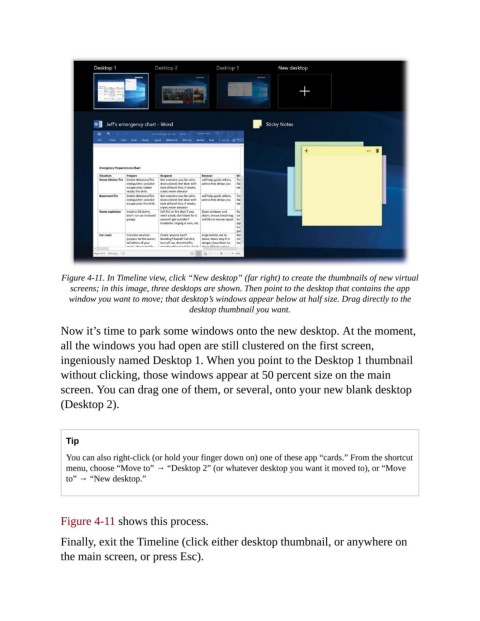
Figure 4-11. In Timeline view, click “New desktop” (far right) to create the thumbnails of new virtual
                   screens; in this image, three desktops are shown. Then point to the desktop that contains the app
                  window you want to move; that desktop’s windows appear below at half size. Drag directly to the
                                                 desktop thumbnail you want.


                Now it’s time to park some windows onto the new desktop. At the moment,
                all the windows you had open are still clustered on the first screen,
                ingeniously named Desktop 1. When you point to the Desktop 1 thumbnail

                without clicking, those windows appear at 50 percent size on the main
                screen. You can drag one of them, or several, onto your new blank desktop
                (Desktop 2).


                  Tip
                  You can also right-click (or hold your finger down on) one of these app “cards.” From the shortcut
                  menu, choose “Move to” → “Desktop 2” (or whatever desktop you want it moved to), or “Move
                  to” → “New desktop.”


                Figure 4-11 shows this process.

                Finally, exit the Timeline (click either desktop thumbnail, or anywhere on

                the main screen, or press Esc).

