


Page 309 - Windows 10 May 2019 Update The Missing Manual: The Book That Should Have Been in the Box
P. 309
POWER USERS’ CLINIC THE WIRELESS PROJECTION
                                                      TOOLBAR

                   Whenever you’re transmitting your screen’s image to another machine

                   —whether it’s to a Miracast TV, another PC, or a projector—you’ve got
                   a problem. Live screen video requires a lot of data—and wireless

                   communications networks are not always fast enough to handle it. You
                   may, in other words, see a lag in the transmitted screen picture.


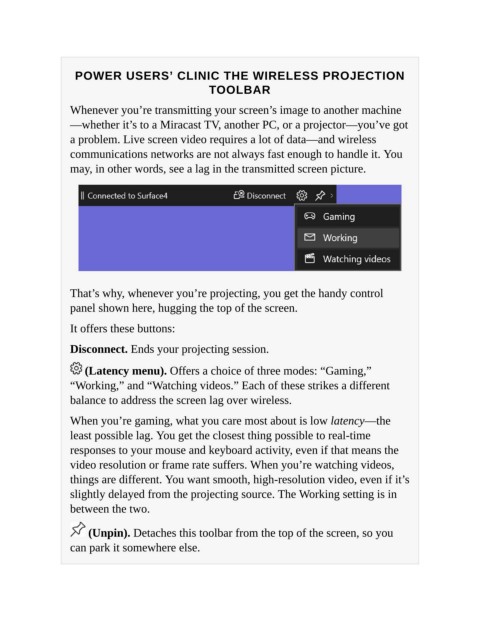
                   That’s why, whenever you’re projecting, you get the handy control
                   panel shown here, hugging the top of the screen.

                   It offers these buttons:


                   Disconnect. Ends your projecting session.

                       (Latency menu). Offers a choice of three modes: “Gaming,”
                   “Working,” and “Watching videos.” Each of these strikes a different

                   balance to address the screen lag over wireless.

                   When you’re gaming, what you care most about is low latency—the
                   least possible lag. You get the closest thing possible to real-time

                   responses to your mouse and keyboard activity, even if that means the
                   video resolution or frame rate suffers. When you’re watching videos,
                   things are different. You want smooth, high-resolution video, even if it’s

                   slightly delayed from the projecting source. The Working setting is in
                   between the two.


                        (Unpin). Detaches this toolbar from the top of the screen, so you
                   can park it somewhere else.

