


Page 383 - Windows 10 May 2019 Update The Missing Manual: The Book That Should Have Been in the Box
P. 383
disposal: the miracle of the multi-Clipboard. To turn it on, press the multi-

                Clipboard keystroke,   +V, and choose “Turn on.” (Or open   →   →
                System → Clipboard, and turn on “Clipboard history.”)

                From now on, you can go nuts, copying and cutting and copying and

                cutting. Everything you grab winds up on an invisible multi-Clipboard,
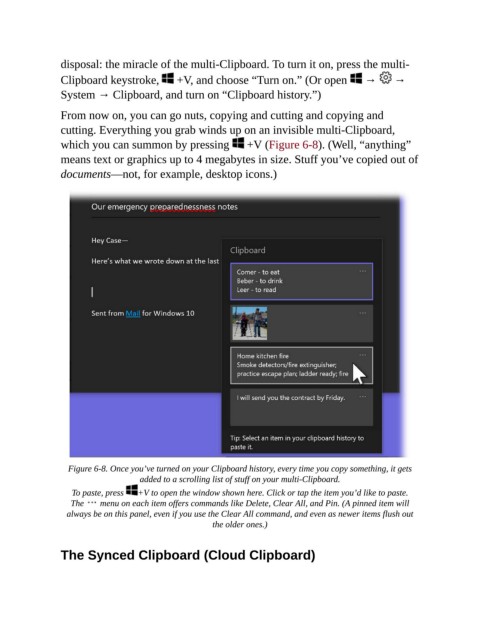
                which you can summon by pressing   +V (Figure 6-8). (Well, “anything”
                means text or graphics up to 4 megabytes in size. Stuff you’ve copied out of

                documents—not, for example, desktop icons.)


                  Figure 6-8. Once you’ve turned on your Clipboard history, every time you copy something, it gets
                                     added to a scrolling list of stuff on your multi-Clipboard.

                   To paste, press   +V to open the window shown here. Click or tap the item you’d like to paste.
                   The     menu on each item offers commands like Delete, Clear All, and Pin. (A pinned item will
                  always be on this panel, even if you use the Clear All command, and even as newer items flush out
                                                       the older ones.)


                The Synced Clipboard (Cloud Clipboard)

