


Page 397 - Windows 10 May 2019 Update The Missing Manual: The Book That Should Have Been in the Box
P. 397
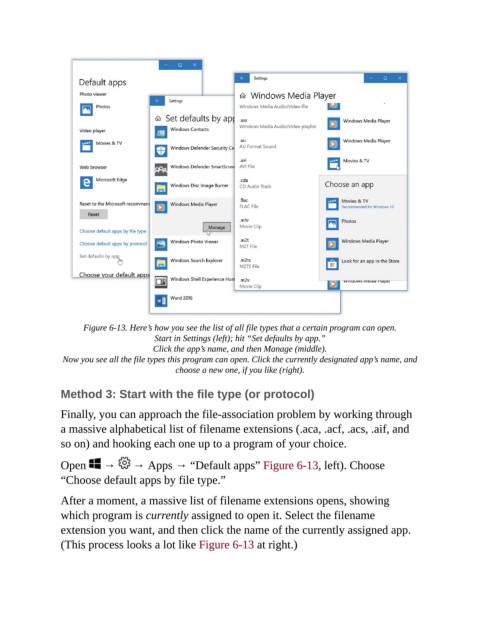
Figure 6-13. Here’s how you see the list of all file types that a certain program can open.
                                        Start in Settings (left); hit “Set defaults by app.”
                                        Click the app’s name, and then Manage (middle).

                 Now you see all the file types this program can open. Click the currently designated app’s name, and
                                              choose a new one, if you like (right).


                Method 3: Start with the file type (or protocol)

                Finally, you can approach the file-association problem by working through
                a massive alphabetical list of filename extensions (.aca, .acf, .acs, .aif, and

                so on) and hooking each one up to a program of your choice.

                Open   →           → Apps → “Default apps” Figure 6-13, left). Choose

                “Choose default apps by file type.”

                After a moment, a massive list of filename extensions opens, showing
                which program is currently assigned to open it. Select the filename

                extension you want, and then click the name of the currently assigned app.
                (This process looks a lot like Figure 6-13 at right.)

