


Page 464 - Windows 10 May 2019 Update The Missing Manual: The Book That Should Have Been in the Box
P. 464
the only thing that stands between you and waking them up at three

                           in the morning because you forgot what time it is where they live.

                           This feature lets you create clocks for two other time zones, so you
                           can see what time it is in other parts of the world. (They appear
                           when you point to the taskbar clock—or, in larger type, when you

                           click it.)

                           You can give them any display name you want, like “Paris” or
                           “Mother-in-Law Time.” Note that the additional clocks’ times are

                           based on the PC’s own local time. So if the computer’s main clock
                           is wrong, the other clocks will be wrong, too.

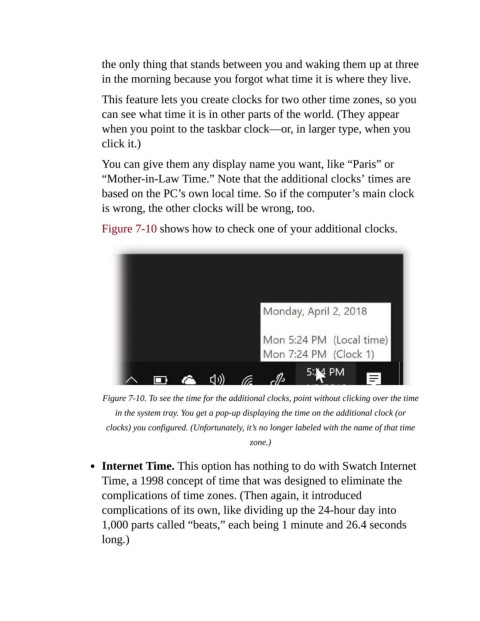
                           Figure 7-10 shows how to check one of your additional clocks.


                           Figure 7-10. To see the time for the additional clocks, point without clicking over the time
                              in the system tray. You get a pop-up displaying the time on the additional clock (or
                            clocks) you configured. (Unfortunately, it’s no longer labeled with the name of that time

                                                                 zone.)

                           Internet Time. This option has nothing to do with Swatch Internet

                           Time, a 1998 concept of time that was designed to eliminate the
                           complications of time zones. (Then again, it introduced
                           complications of its own, like dividing up the 24-hour day into

                           1,000 parts called “beats,” each being 1 minute and 26.4 seconds
                           long.)

