


Page 546 - Windows 10 May 2019 Update The Missing Manual: The Book That Should Have Been in the Box
P. 546
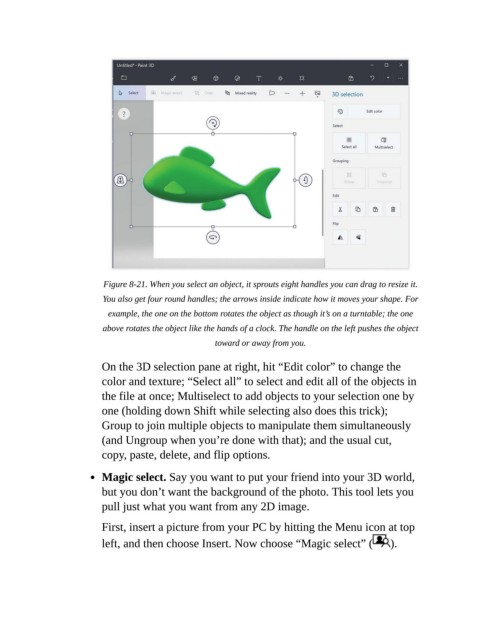
Figure 8-21. When you select an object, it sprouts eight handles you can drag to resize it.

                           You also get four round handles; the arrows inside indicate how it moves your shape. For
                            example, the one on the bottom rotates the object as though it’s on a turntable; the one

                           above rotates the object like the hands of a clock. The handle on the left pushes the object
                                                        toward or away from you.

                           On the 3D selection pane at right, hit “Edit color” to change the

                           color and texture; “Select all” to select and edit all of the objects in
                           the file at once; Multiselect to add objects to your selection one by
                           one (holding down Shift while selecting also does this trick);

                           Group to join multiple objects to manipulate them simultaneously
                           (and Ungroup when you’re done with that); and the usual cut,

                           copy, paste, delete, and flip options.

                           Magic select. Say you want to put your friend into your 3D world,
                           but you don’t want the background of the photo. This tool lets you

                           pull just what you want from any 2D image.

                           First, insert a picture from your PC by hitting the Menu icon at top

                           left, and then choose Insert. Now choose “Magic select” (                 ).

