


Page 548 - Windows 10 May 2019 Update The Missing Manual: The Book That Should Have Been in the Box
P. 548
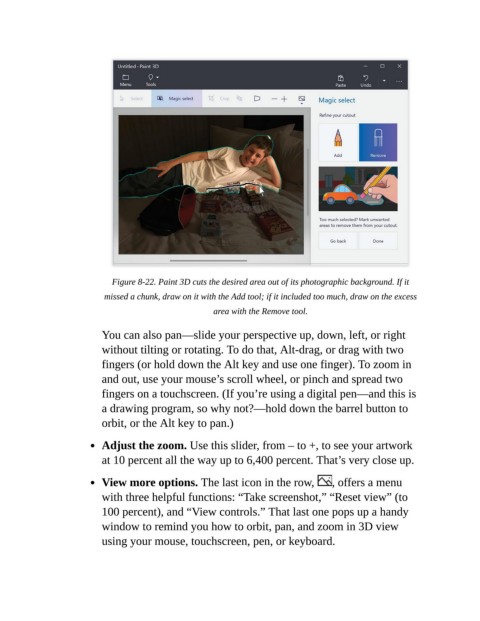
Figure 8-22. Paint 3D cuts the desired area out of its photographic background. If it
                            missed a chunk, draw on it with the Add tool; if it included too much, draw on the excess

                                                       area with the Remove tool.

                           You can also pan—slide your perspective up, down, left, or right

                           without tilting or rotating. To do that, Alt-drag, or drag with two
                           fingers (or hold down the Alt key and use one finger). To zoom in
                           and out, use your mouse’s scroll wheel, or pinch and spread two

                           fingers on a touchscreen. (If you’re using a digital pen—and this is
                           a drawing program, so why not?—hold down the barrel button to
                           orbit, or the Alt key to pan.)


                           Adjust the zoom. Use this slider, from – to +, to see your artwork
                           at 10 percent all the way up to 6,400 percent. That’s very close up.


                           View more options. The last icon in the row,               , offers a menu
                           with three helpful functions: “Take screenshot,” “Reset view” (to
                           100 percent), and “View controls.” That last one pops up a handy

                           window to remind you how to orbit, pan, and zoom in 3D view
                           using your mouse, touchscreen, pen, or keyboard.

