


Page 62 - Windows 10 May 2019 Update The Missing Manual: The Book That Should Have Been in the Box
P. 62
Resize a tile

                Tiles come in four sizes: small square, medium square, large square, and

                rectangle. As part of your Start menu interior-decoration binge, you may
                want to make some of the tiles bigger and some of them smaller. Maybe
                you want to make the important ones rectangular so you can read more

                information on them. Maybe you want to make the rarely used ones smaller
                so more of them fit into a compact space.


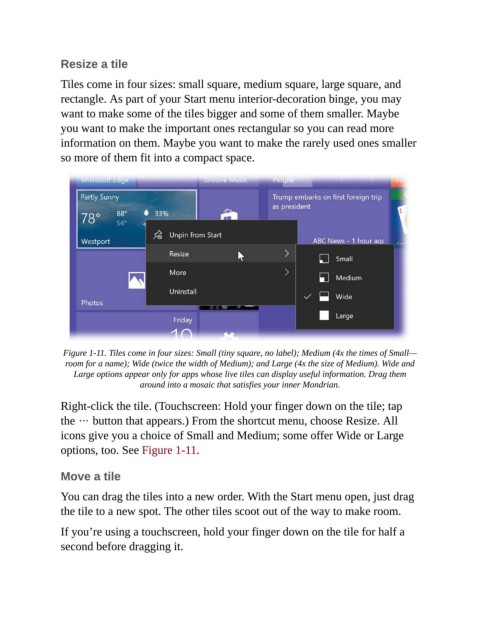
                 Figure 1-11. Tiles come in four sizes: Small (tiny square, no label); Medium (4x the times of Small—
                  room for a name); Wide (twice the width of Medium); and Large (4x the size of Medium). Wide and
                    Large options appear only for apps whose live tiles can display useful information. Drag them
                                     around into a mosaic that satisfies your inner Mondrian.


                Right-click the tile. (Touchscreen: Hold your finger down on the tile; tap
                the   button that appears.) From the shortcut menu, choose Resize. All
                icons give you a choice of Small and Medium; some offer Wide or Large

                options, too. See Figure 1-11.


                Move a tile

                You can drag the tiles into a new order. With the Start menu open, just drag
                the tile to a new spot. The other tiles scoot out of the way to make room.


                If you’re using a touchscreen, hold your finger down on the tile for half a
                second before dragging it.

