


Page 66 - Windows 10 May 2019 Update The Missing Manual: The Book That Should Have Been in the Box
P. 66
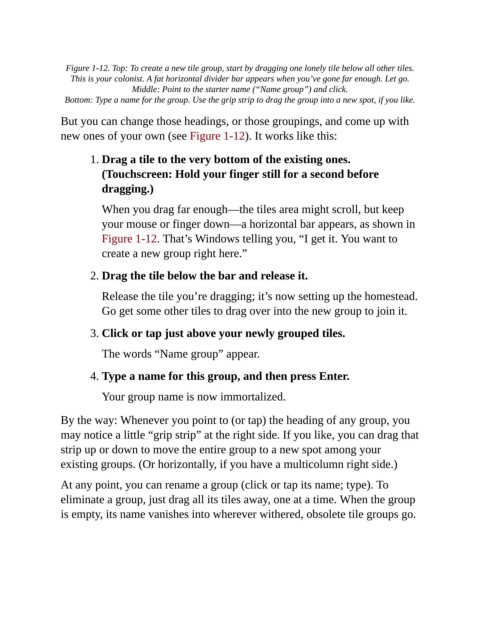
Figure 1-12. Top: To create a new tile group, start by dragging one lonely tile below all other tiles.
                   This is your colonist. A fat horizontal divider bar appears when you’ve gone far enough. Let go.
                                   Middle: Point to the starter name (“Name group”) and click.

                 Bottom: Type a name for the group. Use the grip strip to drag the group into a new spot, if you like.
                But you can change those headings, or those groupings, and come up with
                new ones of your own (see Figure 1-12). It works like this:


                        1. Drag a tile to the very bottom of the existing ones.

                           (Touchscreen: Hold your finger still for a second before
                           dragging.)

                           When you drag far enough—the tiles area might scroll, but keep

                           your mouse or finger down—a horizontal bar appears, as shown in
                           Figure 1-12. That’s Windows telling you, “I get it. You want to
                           create a new group right here.”


                        2. Drag the tile below the bar and release it.

                           Release the tile you’re dragging; it’s now setting up the homestead.
                           Go get some other tiles to drag over into the new group to join it.


                        3. Click or tap just above your newly grouped tiles.

                           The words “Name group” appear.


                        4. Type a name for this group, and then press Enter.

                           Your group name is now immortalized.


                By the way: Whenever you point to (or tap) the heading of any group, you
                may notice a little “grip strip” at the right side. If you like, you can drag that

                strip up or down to move the entire group to a new spot among your
                existing groups. (Or horizontally, if you have a multicolumn right side.)

                At any point, you can rename a group (click or tap its name; type). To

                eliminate a group, just drag all its tiles away, one at a time. When the group
                is empty, its name vanishes into wherever withered, obsolete tile groups go.

