


Page 673 - Windows 10 May 2019 Update The Missing Manual: The Book That Should Have Been in the Box
P. 673
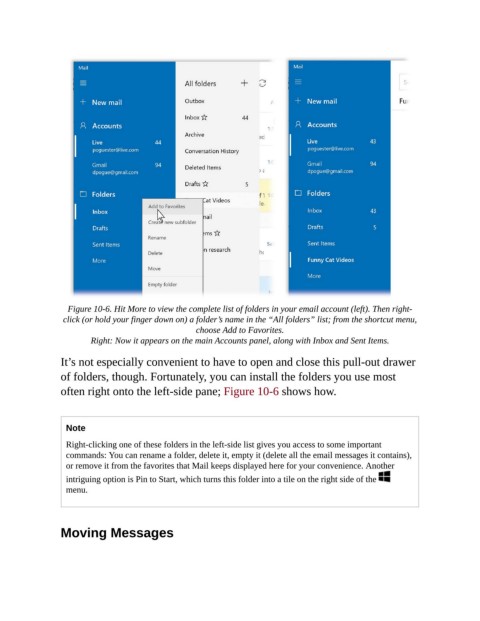
Figure 10-6. Hit More to view the complete list of folders in your email account (left). Then right-
                 click (or hold your finger down on) a folder’s name in the “All folders” list; from the shortcut menu,
                                                   choose Add to Favorites.

                        Right: Now it appears on the main Accounts panel, along with Inbox and Sent Items.

                It’s not especially convenient to have to open and close this pull-out drawer
                of folders, though. Fortunately, you can install the folders you use most
                often right onto the left-side pane; Figure 10-6 shows how.


                  Note
                  Right-clicking one of these folders in the left-side list gives you access to some important
                  commands: You can rename a folder, delete it, empty it (delete all the email messages it contains),
                  or remove it from the favorites that Mail keeps displayed here for your convenience. Another
                  intriguing option is Pin to Start, which turns this folder into a tile on the right side of the
                  menu.


                Moving Messages

