


Page 709 - Windows 10 May 2019 Update The Missing Manual: The Book That Should Have Been in the Box
P. 709
Clicking a pop-up can begin the silent downloading process. That’s true

                even if the pop-up seems to serve a legitimate purpose—asking you to
                participate in a survey, for example.

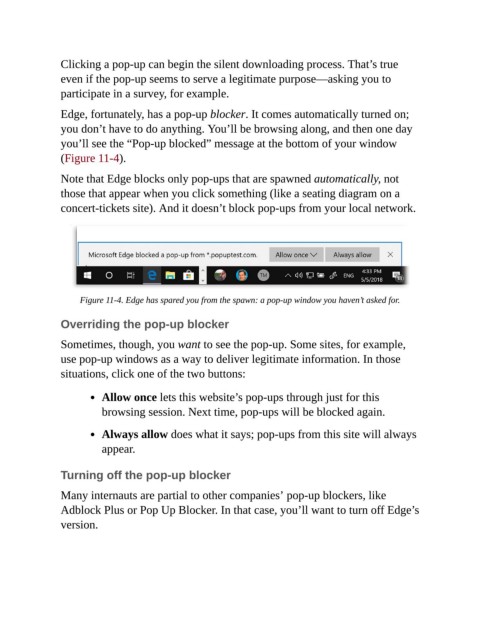
                Edge, fortunately, has a pop-up blocker. It comes automatically turned on;
                you don’t have to do anything. You’ll be browsing along, and then one day

                you’ll see the “Pop-up blocked” message at the bottom of your window
                (Figure 11-4).

                Note that Edge blocks only pop-ups that are spawned automatically, not

                those that appear when you click something (like a seating diagram on a
                concert-tickets site). And it doesn’t block pop-ups from your local network.


                     Figure 11-4. Edge has spared you from the spawn: a pop-up window you haven’t asked for.


                Overriding the pop-up blocker

                Sometimes, though, you want to see the pop-up. Some sites, for example,
                use pop-up windows as a way to deliver legitimate information. In those
                situations, click one of the two buttons:


                           Allow once lets this website’s pop-ups through just for this

                           browsing session. Next time, pop-ups will be blocked again.

                           Always allow does what it says; pop-ups from this site will always
                           appear.


                Turning off the pop-up blocker

                Many internauts are partial to other companies’ pop-up blockers, like
                Adblock Plus or Pop Up Blocker. In that case, you’ll want to turn off Edge’s

                version.

