


Page 736 - Windows 10 May 2019 Update The Missing Manual: The Book That Should Have Been in the Box
P. 736
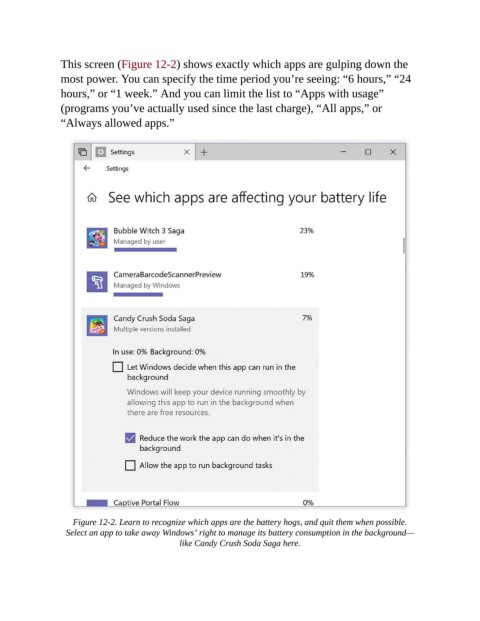
This screen (Figure 12-2) shows exactly which apps are gulping down the

                most power. You can specify the time period you’re seeing: “6 hours,” “24
                hours,” or “1 week.” And you can limit the list to “Apps with usage”
                (programs you’ve actually used since the last charge), “All apps,” or
                “Always allowed apps.”


                    Figure 12-2. Learn to recognize which apps are the battery hogs, and quit them when possible.

                  Select an app to take away Windows’ right to manage its battery consumption in the background—
                                               like Candy Crush Soda Saga here.

