


Page 783 - Windows 10 May 2019 Update The Missing Manual: The Book That Should Have Been in the Box
P. 783
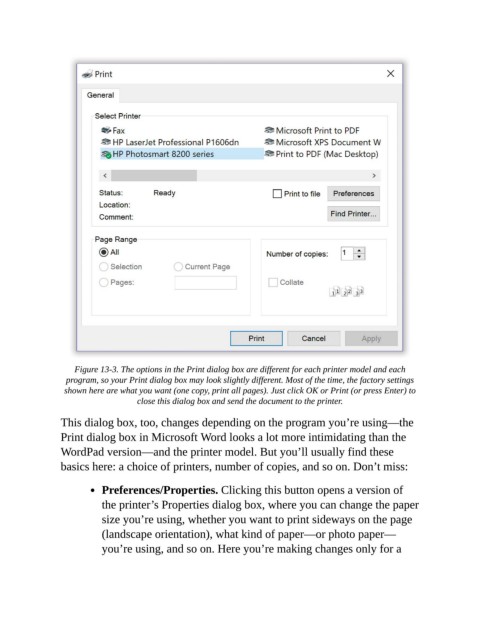
Figure 13-3. The options in the Print dialog box are different for each printer model and each
                  program, so your Print dialog box may look slightly different. Most of the time, the factory settings
                 shown here are what you want (one copy, print all pages). Just click OK or Print (or press Enter) to
                                    close this dialog box and send the document to the printer.

                This dialog box, too, changes depending on the program you’re using—the

                Print dialog box in Microsoft Word looks a lot more intimidating than the
                WordPad version—and the printer model. But you’ll usually find these
                basics here: a choice of printers, number of copies, and so on. Don’t miss:


                           Preferences/Properties. Clicking this button opens a version of
                           the printer’s Properties dialog box, where you can change the paper

                           size you’re using, whether you want to print sideways on the page
                           (landscape orientation), what kind of paper—or photo paper—
                           you’re using, and so on. Here you’re making changes only for a

