


Page 787 - Windows 10 May 2019 Update The Missing Manual: The Book That Should Have Been in the Box
P. 787
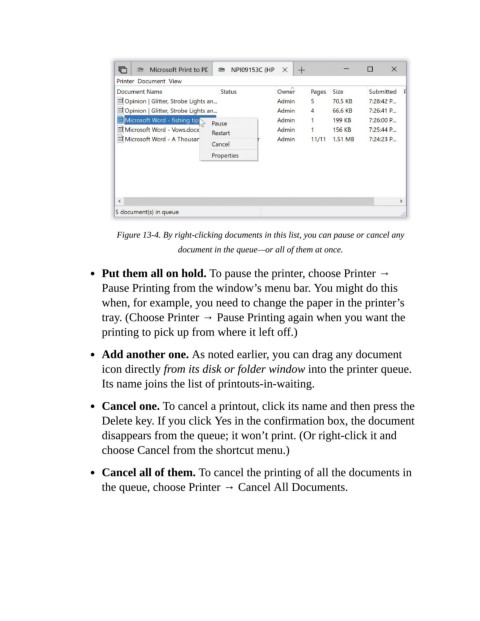
Figure 13-4. By right-clicking documents in this list, you can pause or cancel any
                                              document in the queue—or all of them at once.

                           Put them all on hold. To pause the printer, choose Printer →

                           Pause Printing from the window’s menu bar. You might do this
                           when, for example, you need to change the paper in the printer’s

                           tray. (Choose Printer → Pause Printing again when you want the
                           printing to pick up from where it left off.)

                           Add another one. As noted earlier, you can drag any document

                           icon directly from its disk or folder window into the printer queue.
                           Its name joins the list of printouts-in-waiting.


                           Cancel one. To cancel a printout, click its name and then press the
                           Delete key. If you click Yes in the confirmation box, the document
                           disappears from the queue; it won’t print. (Or right-click it and

                           choose Cancel from the shortcut menu.)

                           Cancel all of them. To cancel the printing of all the documents in

                           the queue, choose Printer → Cancel All Documents.

