


Page 843 - Windows 10 May 2019 Update The Missing Manual: The Book That Should Have Been in the Box
P. 843
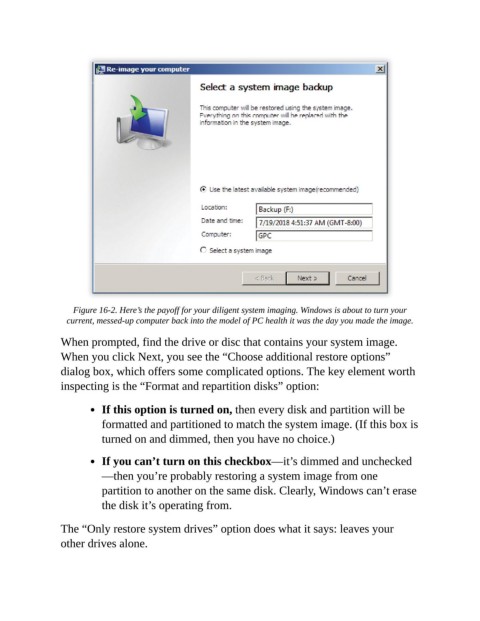
Figure 16-2. Here’s the payoff for your diligent system imaging. Windows is about to turn your
                  current, messed-up computer back into the model of PC health it was the day you made the image.


                When prompted, find the drive or disc that contains your system image.
                When you click Next, you see the “Choose additional restore options”
                dialog box, which offers some complicated options. The key element worth
                inspecting is the “Format and repartition disks” option:


                           If this option is turned on, then every disk and partition will be

                           formatted and partitioned to match the system image. (If this box is
                           turned on and dimmed, then you have no choice.)

                           If you can’t turn on this checkbox—it’s dimmed and unchecked

                           —then you’re probably restoring a system image from one
                           partition to another on the same disk. Clearly, Windows can’t erase

                           the disk it’s operating from.

                The “Only restore system drives” option does what it says: leaves your

                other drives alone.

