


Page 876 - Windows 10 May 2019 Update The Missing Manual: The Book That Should Have Been in the Box
P. 876
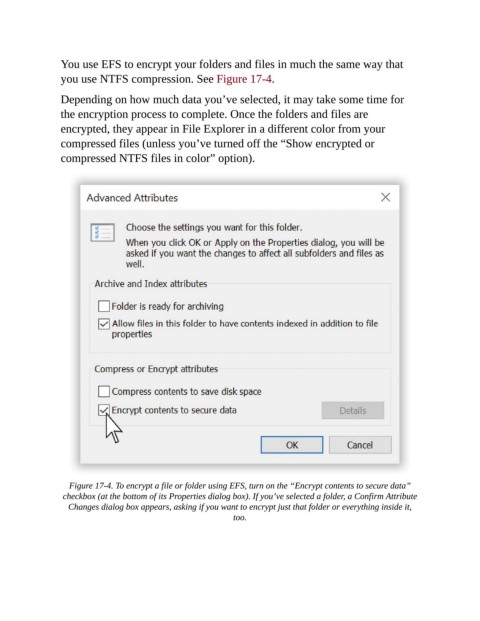
You use EFS to encrypt your folders and files in much the same way that

                you use NTFS compression. See Figure 17-4.

                Depending on how much data you’ve selected, it may take some time for
                the encryption process to complete. Once the folders and files are
                encrypted, they appear in File Explorer in a different color from your

                compressed files (unless you’ve turned off the “Show encrypted or
                compressed NTFS files in color” option).


                   Figure 17-4. To encrypt a file or folder using EFS, turn on the “Encrypt contents to secure data”
                 checkbox (at the bottom of its Properties dialog box). If you’ve selected a folder, a Confirm Attribute
                  Changes dialog box appears, asking if you want to encrypt just that folder or everything inside it,
                                                            too.

