


Page 872 - Windows 10 May 2019 Update The Missing Manual: The Book That Should Have Been in the Box
P. 872
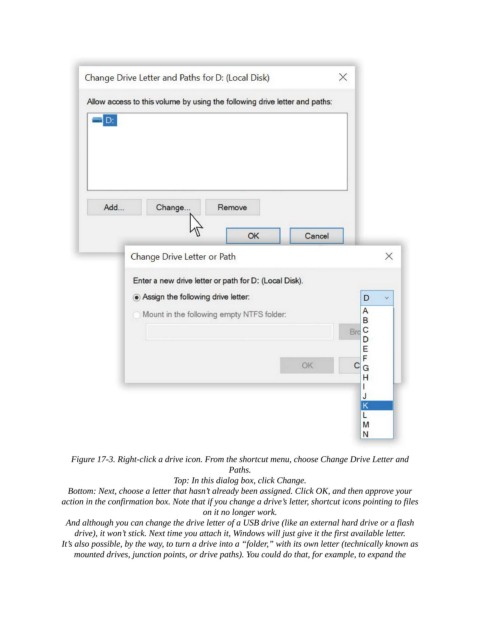
Figure 17-3. Right-click a drive icon. From the shortcut menu, choose Change Drive Letter and
                                                           Paths.

                                             Top: In this dialog box, click Change.

                  Bottom: Next, choose a letter that hasn’t already been assigned. Click OK, and then approve your
                 action in the confirmation box. Note that if you change a drive’s letter, shortcut icons pointing to files
                                                     on it no longer work.

                  And although you can change the drive letter of a USB drive (like an external hard drive or a flash
                    drive), it won’t stick. Next time you attach it, Windows will just give it the first available letter.

                 It’s also possible, by the way, to turn a drive into a “folder,” with its own letter (technically known as
                    mounted drives, junction points, or drive paths). You could do that, for example, to expand the

