


Page 34 - Computing Book 7
P. 34
Building a Website – Adobe Dreamweaver                                               Class 7


               Adding Content and Hyperlinks to Your Webpage:

               To add content on your webpage, we will use the design view of DW (Dreamweaver). This UI looks
               similar to a word processing software but there are some limitations due to the HTML code.
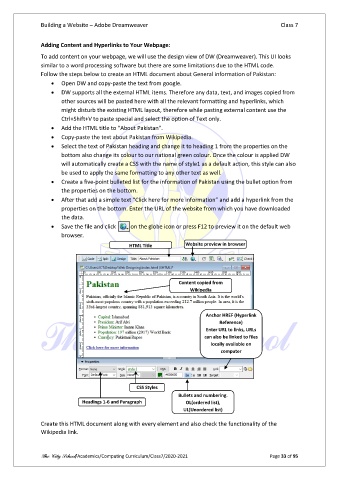
               Follow the steps below to create an HTML document about General information of Pakistan:
                   •  Open DW and copy-paste the text from google.
                   •  DW supports all the external HTML items. Therefore any data, text, and images copied from
                       other sources will be pasted here with all the relevant formatting and hyperlinks, which
                       might disturb the existing HTML layout, therefore while pasting external content use the
                       Ctrl+Shift+V to paste special and select the option of Text only.
                   •  Add the HTML title to “About Pakistan”.
                   •  Copy-paste the text about Pakistan from Wikipedia.
                   •  Select the text of Pakistan heading and change it to heading 1 from the properties on the
                       bottom also change its colour to our national green colour. Once the colour is applied DW
                       will automatically create a CSS with the name of style1 as a default action, this style can also
                       be used to apply the same formatting to any other text as well.
                   •  Create a five-point bulleted list for the information of Pakistan using the bullet option from
                       the properties on the bottom.
                   •  After that add a simple text “Click here for more information” and add a hyperlink from the
                       properties on the bottom. Enter the URL of the website from which you have downloaded
                       the data.
                   •  Save the file and click   on the globe icon or press F12 to preview it on the default web
                       browser.
                                              HTML Title          Website preview in browser


                                                                Content copied from
                                                                    Wikipedia


                                                                         Anchor HREF (Hyperlink
                                                                              Reference)
                                                                         Enter URL to links, URLs
                                                                         can also be linked to files
                                                                           locally available on
                                                                               computer


                                                 CSS Styles
                                                                Bullets and numbering.
                              Headings 1-6 and Paragraph          OL(ordered list),
                                                                  UL(Unordered list)

               Create this HTML document along with every element and also check the functionality of the
               Wikipedia link.


               The City School/Academics/Computing Curriculum/Class7/2020-2021                  Page 33 of 95

