


Page 35 - Computing Book 7
P. 35
Building a Website – Adobe Dreamweaver                                               Class 7


               Creating a Website:

               In a traditional website, there is a lot of content containing text, images, videos, sounds, etc. this
               content needs proper management to effectively use the space and also provide a clear and
               aesthetic look to users/viewer.
               Content management on a webpage can be achieved in several
               ways but the two most common ways are Tables and DIVs. Tables in
               HTML can be formed using the Table icon   which will later ask
               for the properties of the table like the number of rows and column,
               table width, border thickness, cell padding and spacing (cell
               margins). The table can also have tables inside to manage the content more symmetrically, and this
               table is called a nested table/s.
               Follow the steps below to create a webpage with navigation using tables:
            •  Add background colour or a background image to the page from properties panel on the bottom,
               also set the font to Calibri from the same menu so the whole text in this document should be
               displayed with Calibri font. These formatting will automatically add CSS in the code.
            •  Add the HTML webpage title as “Search Engine Database”.
            •  Create a new table with 1000px width and 6 rows and 4 columns. Set cell border, cell padding, cell
               spacing to 0, by doing this the table will not visible and can be used only for the structure and
               content management.
            •  After creating the table, set its background appropriately so the background colour or image will not
               bother the content we will place inside the table.
            •  Select the cells of the first row, right-click to open the menu and from the menu select table and
               merge cells or press CTRL+ALT+M after selecting the cells.
            •  Insert a relevant header image to the topic in a merged cell as a header of the website. Using the
               insert image option. Ideally, the image size would be 1000px in width and height would not exceed
               more than 250px.

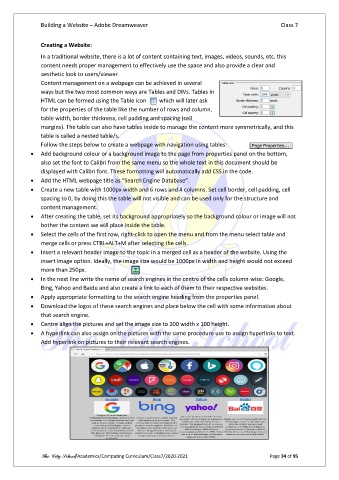
            •  In the next line write the name of search engines in the centre of the cells column-wise: Google,
               Bing, Yahoo and Baidu and also create a link to each of them to their respective websites.
            •  Apply appropriate formatting to the search engine heading from the properties panel.
            •  Download the logos of these search engines and place below the cell with some information about
               that search engine.
            •  Centre align the pictures and set the image size to 200 width x 100 height.
            •  A hyperlink can also assign on the pictures with the same procedure use to assign hyperlinks to text.
               Add hyperlink on pictures to their relevant search engines.


               The City School/Academics/Computing Curriculum/Class7/2020-2021                  Page 34 of 95

