


Page 12 - TCS ICT Book 5
P. 12
The City School  2021-2022


           1.  Media Library: this is where you will find all your media including video clips, photos,
              and music. It also houses transitions, effects, and a variety of other assets that you can

              use in your projects.
           2.  Preview Window: the preview window shows the video in the timeline. The position of

              the playhead is shown in the time code in the lower right corner. You can enter a new
              time code to jump to a specific point in the video. Below the time code, you’ll find the

              snapshot button which can save a full-resolution still frame and automatically add it to
              the Media Library as an image.

           3.  Toolbar: the toolbar provides easy access to many editing commands. You can zoom
              in and out on the timeline and access a variety of tools like cut and speed.

           4.  Timeline: the timeline is where you assemble the media and effects for your video
              project.


           Saving a Project


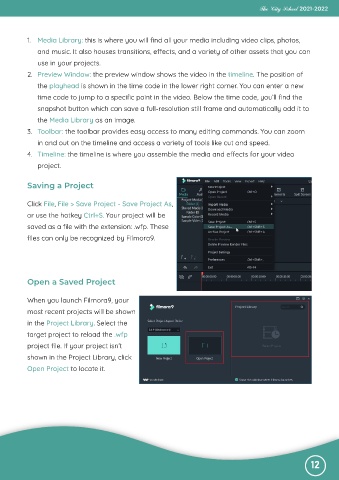
           Click File, File > Save Project - Save Project As,
           or use the hotkey Ctrl+S. Your project will be
           saved as a file with the extension: .wfp. These

           files can only be recognized by Filmora9.


           Open a Saved Project


           When you launch Filmora9, your
           most recent projects will be shown

           in the Project Library. Select the
           target project to reload the .wfp

           project file. If your project isn’t
           shown in the Project Library, click

           Open Project to locate it.


                                                                                                              12

