


Page 26 - Super Scratch Programming Adventure -2nd Edition
P. 26
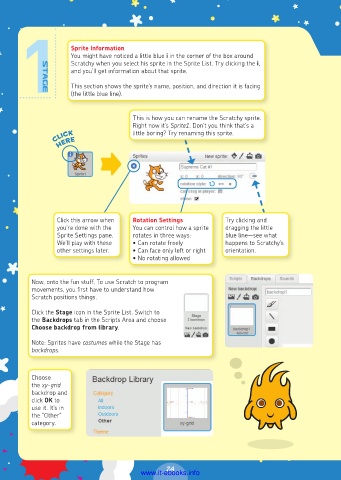
Sprite Information
                     You might have noticed a little blue i in the corner of the box around
                     Scratchy when you select his sprite in the Sprite List. Try clicking the i,
                     and you’ll get information about that sprite.

                     This section shows the sprite’s name, position, and direction it is facing
                     (the little blue line).


                                       This is how you can rename the Scratchy sprite.
                                       Right now it’s Sprite1. Don’t you think that’s a
                click                  little boring? Try renaming this sprite.
                  here


                 Click this arrow when   Rotation Settings       Try clicking and
                 you’re done with the   You can control how a sprite   dragging the little
                 Sprite Settings pane.   rotates in three ways:   blue line—see what
                 We’ll play with these   • Can rotate freely     happens to Scratchy’s
                 other settings later.  • Can face only left or right  orientation.
                                       • No rotating allowed


          Now, onto the fun stuff. To use Scratch to program
          movements, you first have to understand how
          Scratch positions things.

          Click the Stage icon in the Sprite List. Switch to
          the Backdrops tab in the Scripts Area and choose
          Choose backdrop from library.
          Note: Sprites have costumes while the Stage has
          backdrops.


          Choose
          the xy-grid
          backdrop and
          click OK to
          use it. It’s in
          the “Other”
          category.


                                                24
                                         www.it-ebooks.info

