


Page 217 - Scratch Programming Playground
P. 217
4. Create the Energy Blast Sprite


            Scratch’s Sprite Library has a sprite we can use for the energy
            blasts. Click the Choose sprite from library button next
            to new sprite. Select the Ball sprite and click OK. open the
            sprite’s Info Area by clicking the   button, and rename it
            Energy Blast.
                We want the Energy Blast sprite to make a laser sound
            when the Spaceship sprite fires it. Click the Sounds tab
            above the Blocks Area. Then click the Choose sound from

            library button under new sound. Select the laser1 sound and
            click OK.
                We’ll make clones of the Energy Blast sprite, but the
            clones and original sprite will run different code. There is
            only one Energy Blast sprite, but the player should be able
            to fire many energy blasts at once. We’ll create clones of the
            original Energy Blast sprite so that more than one energy
            blast can be on the Stage. The original sprite will remain
            hidden; all the Energy Blast sprites that appear on the Stage
            will be clones.
                We’ll use a variable named I am a clone to keep track of
            which is the original sprite and which are clones. Click the
            Scripts tab to go back to the Scripts Area. In the orange
            Data category, click the Make a Variable button. Create a
            For this sprite only variable named I am a clone. The origi-
            nal Energy Blast sprite will set this variable to no, and the
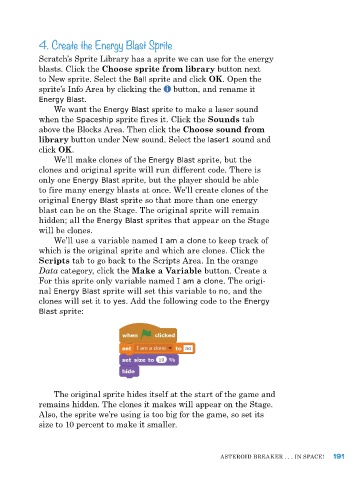
            clones will set it to yes. Add the following code to the Energy
            Blast sprite:


                The original sprite hides itself at the start of the game and
            remains hidden. The clones it makes will appear on the Stage.
            Also, the sprite we’re using is too big for the game, so set its
            size to 10 percent to make it smaller.


                                                              ASTeroID BreAker . . . In SpACe!  191

